Blog · 5 min read
How to turn a rough ad draft into a finished ad with AI
You have a draft, a photo with a headline and a few boxes of text. You attach it, ask for "a nice ad", and get back either your own picture or a stranger's. Here is what the model did with your picture, and how to ask so it does what you meant.
Two ways it goes wrong
Ask an image model to "make this a nice ad" and one of two things usually happens.
You get your own picture back, slightly cleaner. Models that work from your whole picture treat it as the thing to keep: the people, the layout, the words. "Make it nice" doesn't say what to change, so they change very little. We tried this with a finished-looking draft, twice, with two different phrasings ("make this a nice ad" and "turn this into a professional print ad"). Both times the layout, the people and every word came back where they were, just a little sharper.
You get a different picture. Some models take only part of a reference picture. MiniMax Image-01, for example, uses an attached picture as a character reference: it keeps a person's face and nothing else. A product photo or a whole layout is set aside, and the model draws a new picture from your words. Other models ignore attached pictures entirely and work from text alone.
Neither result is a bug. In both cases the model did something reasonable with an instruction that didn't say enough.
What the model needs to know
A good brief answers five questions. You don't need fancy prompt words, just clear ones.
- What stays. The product exactly as it is, including the label and logo, the person, the exact words you need.
- What changes. The background, the layout, the type, the colours, the light, the crop. Name them.
- What it's for. A printed poster, an Instagram post, a story, a web banner. This decides the shape and how much text fits.
- The words, exactly. Put the headline in quotation marks and keep it to a few words. Short text comes out reliably; long paragraphs are where spelling mistakes creep in.
- The look. A few words of style: "clean editorial, lots of white space, one bold sans-serif headline", or "warm, homely, natural light".
A brief that works
Say your draft is a photo of a coffee bag on a cluttered counter, with three text boxes on top.
Before:
make this a nice adAfter:
Turn this draft into a finished print ad, portrait.
Keep the coffee bag exactly as it is, label and logo included.
Replace the cluttered background with a clean kitchen counter in soft morning light.
One headline at the top in a bold serif: "Morning, done right".
Under the bag, one short line: "Single-origin, roasted this week."
Remove the other text boxes. Leave clear space at the bottom for our logo.
The second brief is longer, but every line tells the model something it couldn't guess.
Edit the picture, or make a new one?
There are two different jobs here, and they suit different tools.
Edit when the picture is mostly right. An edit keeps everything you don't mention. In Studio, press Edit under a picture:
- Apply change: type what to change in the box ("make it golden hour", "replace the text boxes with one headline") and press Apply change. Paint an area first to limit the change to that spot.
- Replace background keeps the subject and draws a new background from your words.
- Expand extends the picture to a new shape, such as 4:5 for an Instagram post or 9:16 for a story.
- Erase painted area removes something you paint over, and Enhance sharpens the result.
Make a new picture when you want a new design. Attach your draft as a reference and describe the new layout. The model uses your picture as a guide, not as a canvas, so it is free to rearrange things.
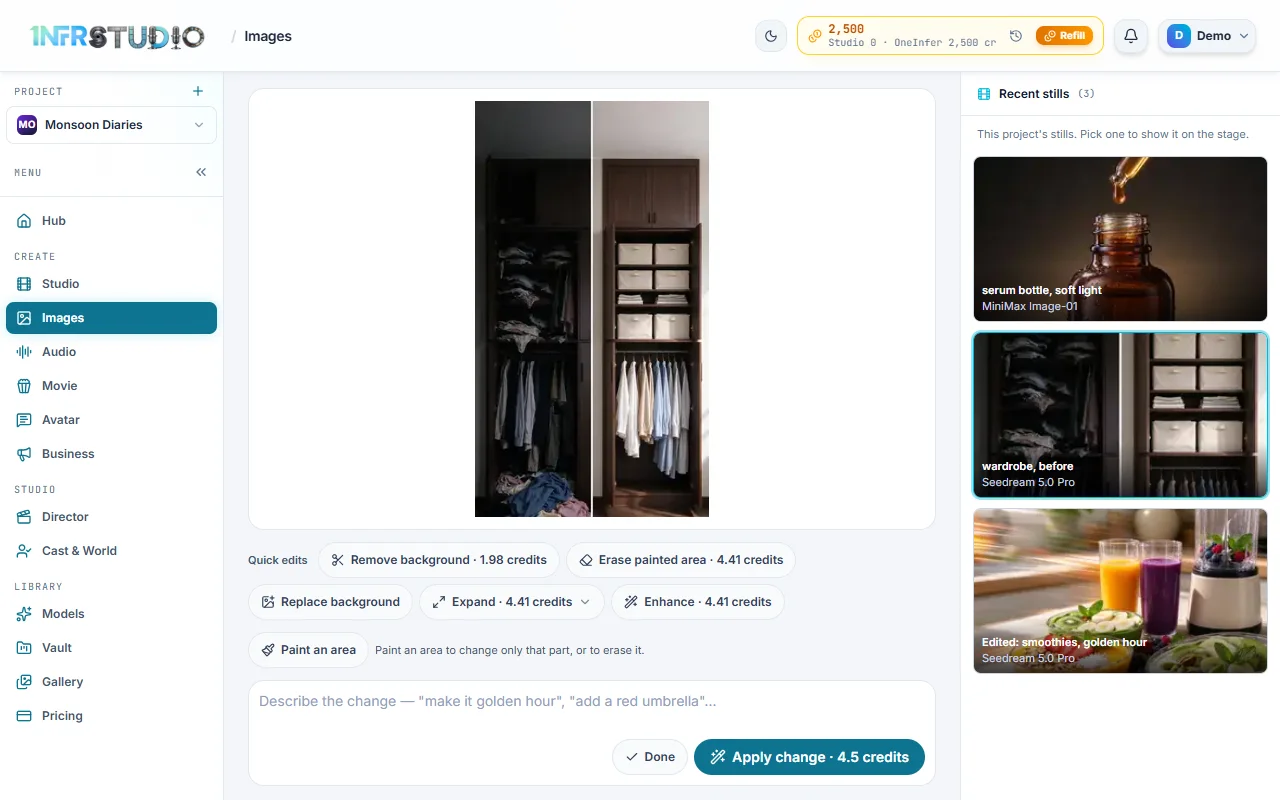
Every edit is saved as a new picture beside the original, so you can try a few directions and keep the best. See Change a picture in the docs.
Want a video ad instead? Business plans a whole ad from your product, your brand's page and a style you pick, such as a mini film, a creator talking to camera, or a before-and-after.
Shapes for common placements
| Where it goes | Shape |
|---|---|
| Instagram or Facebook feed | 4:5 portrait, or 1:1 square |
| Stories and Reels | 9:16 |
| YouTube thumbnail, web banner | 16:9 |
| Printed poster or flyer | Portrait, 3:4 or 2:3 |
If the shape you need isn't in the image model's list, make the picture in the nearest shape and use Expand to reach the exact one.
Check before you publish
- Every word. Read each word on the image, including small print. Check prices and claims.
- The product. The label, the logo and the colour should match the real thing.
- People. Use people you have permission to show, and never a lookalike of a real person.
- Other people's marks. If your draft carries another creator's handle or watermark, don't ask AI to remove it. Start from your own photos instead.
- Platform rules. Health, finance and before-and-after claims have extra rules on most ad platforms.
Questions
Why did I get the same picture back?
The model kept your picture because the instruction didn't say what to change. Name the changes: the background, the layout, the headline, the colours. Leave out general words like "nicer" or "more professional".
Why did the AI ignore my product photo?
Some image models use a reference picture only for a person's face, and others ignore pictures entirely. Pick a model that works from the whole picture. In Studio, Images switches to one for you when you attach a picture.
Can AI put the text on my ad correctly?
Short headlines usually come out right, especially in quotation marks. Long paragraphs are where errors appear, so keep on-image text short and read every word before you publish.
Should I edit my draft or start a new picture?
Edit when the picture is mostly right and you want specific changes; everything you don't mention stays. Start a new picture, with your draft attached as a reference, when you want a different layout.