DocsMake pictures
Images
Images makes one picture at a time from a sentence, and edits any picture you have. Use it for a start frame, a cast portrait, a product shot or a poster.
What you will make
A still picture, in the shape you choose, and then as many edits of it as you like. Pictures are cheap (a still costs from under 1 credit to about 10, depending on the model) and they are the best way to settle how something should look before you spend credits on video: send the picture to Studio as the first frame, and the clip begins exactly there.
A picture from start to finish
Say you need the opening frame for a film about the monsoon.
- Open Images in the menu. The stage says Describe a still.
- Write: "A tea stall at dusk in heavy monsoon rain, warm lamp light on wet stone, shallow depth of field." The box takes light, lens and subject.
- Check the shape in the Still pill (it starts at 16:9), then look at the button: Render still · 0.35 credits. The price depends on the model; the default, MiniMax Image-01, is the cheapest in the list.
- Press Render still. The picture appears on the stage and in Recent stills on the right.
- Press Edit under it to change it, or Send to Studio and Start to make it the first frame of a clip.
What you will see
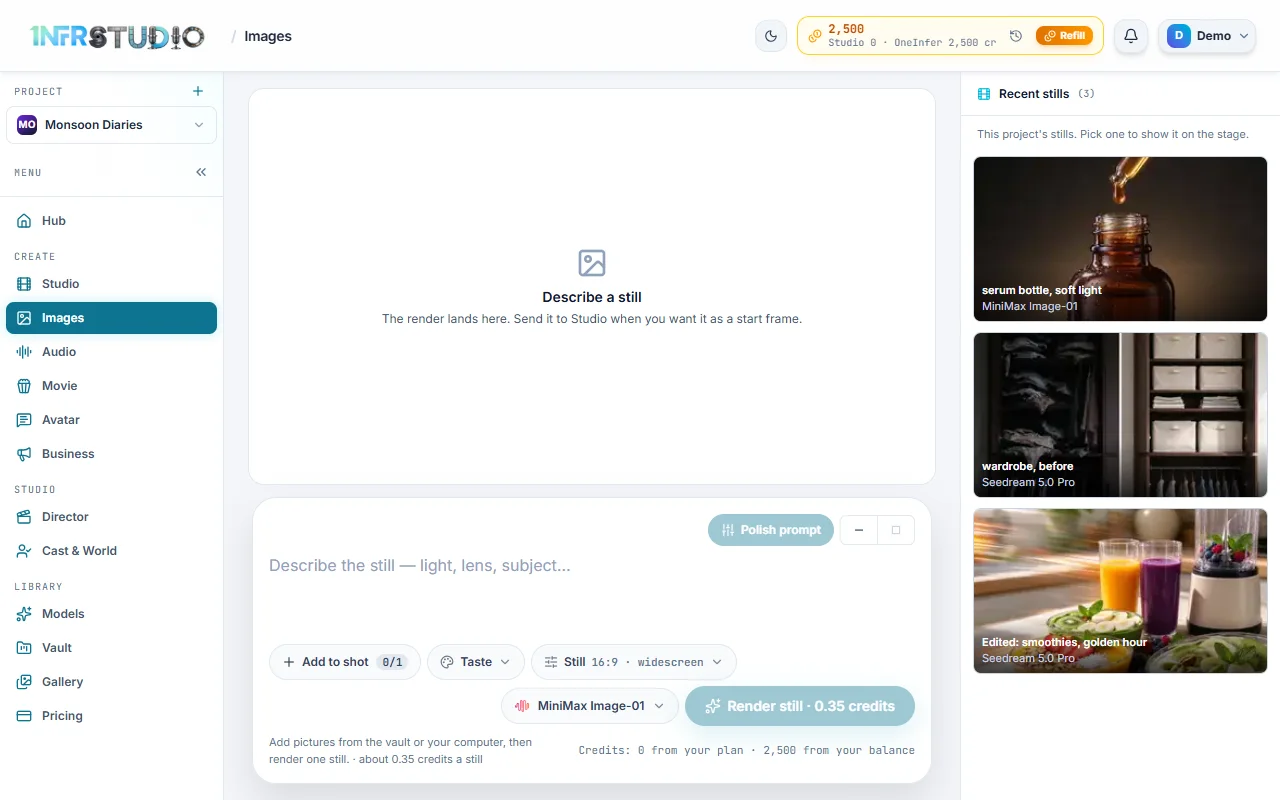
The stage is on top, the prompt box under it, and Recent stills on the right (a strip above the box on a narrow screen). Under the box:
| Control | What it does |
|---|---|
| Add to shot | Adds pictures to guide the still: your cast, places and props from Cast & World, or From device, Paste, Camera and From Vault. The counter shows how many the model takes. |
| Taste | A ready-made look, added to your words when you render. |
| Still | The shape (Shape) of the picture. |
| The model name | Which image model makes it, with its price. |
| Render still | Makes one picture. It shows the price, and reads Rendering… while it works. |
Polish prompt rewrites your words into a fuller prompt for the model, shape, pictures and Taste you chose. Render still stays off until there is a prompt, and you must be signed in.
Pictures made here are one at a time: there is no setting for how many. Resolution is the model's own and is not a choice.
Pick the model
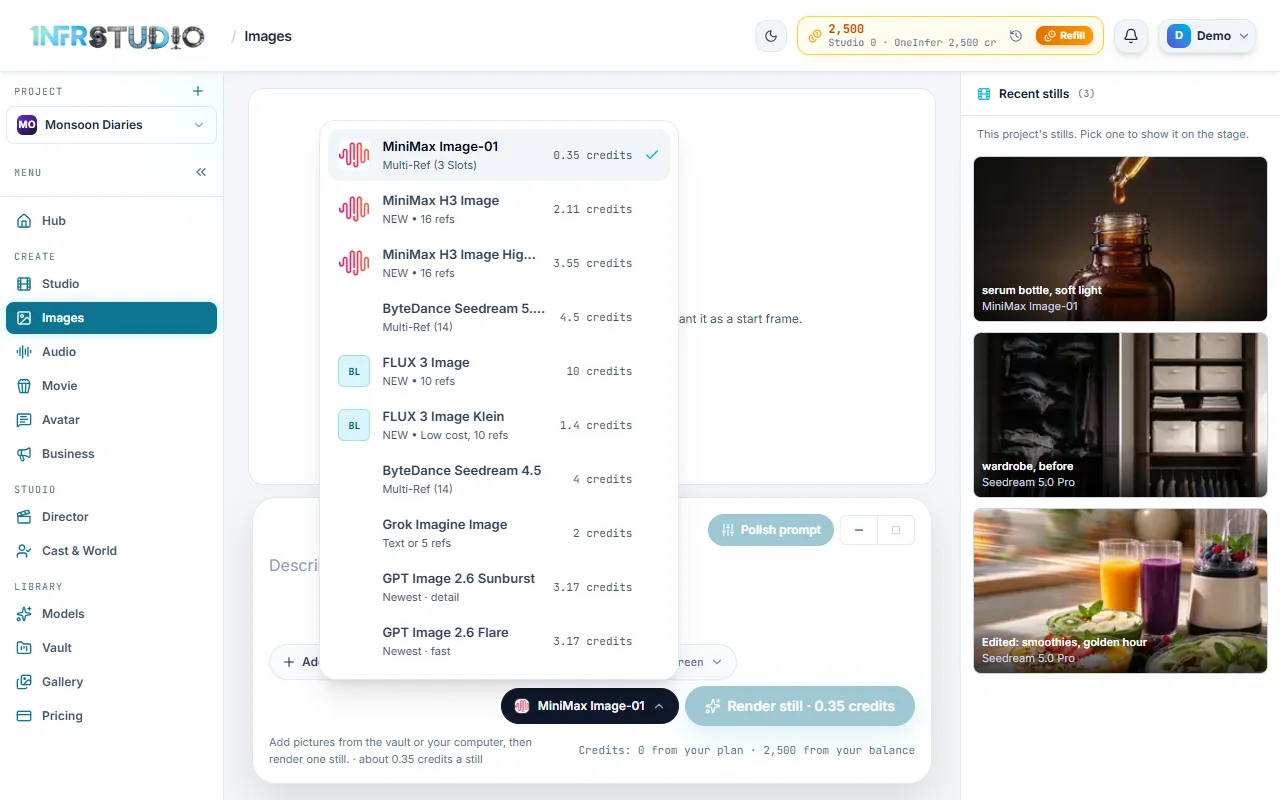
Press the model button. Each row shows the model's name, what it is good at, and its price per still. At the time of writing:
| Model | Good for | About |
|---|---|---|
| MiniMax Image-01 | The cheap default; one reference picture | 0.35 credits |
| MiniMax H3 Image | Many references (up to 16) | 2 credits |
| ByteDance Seedream 5.0 Pro | Up to 14 references, high quality | 4.5 credits |
| FLUX 3 Image | Up to 10 references | 10 credits |
| FLUX 3 Image Klein | Low cost, up to 10 references | 1.4 credits |
| Grok Imagine Image | Text, or up to 5 references | 2 credits |
| GPT Image 2.6 Sunburst and Flare | The newest, most detailed and the fast one | about 3 credits, depending on the prompt |
| MAI-Image-2.7 | Accurate text in the picture, up to 5 references, transparent backgrounds | about 3.5 credits, plus about 0.8 a reference |
| MAI-Image-2.7 Flash | The same, faster and cheaper | about 1 credit, plus about 0.26 a reference |
Only models with a published price are listed. Studio chooses MiniMax Image-01 until you change it. If you add more reference pictures than the model takes, Studio switches to ByteDance Seedream 5.0 Pro and tells you.
Shapes
Press Still to open Shape: 16:9, 4:3, 1:1, 3:4 and 9:16, limited to what the model can make. The default is 16:9. A model that does not make the shape you were on moves you to the nearest one and says so. Some FLUX models make 1:1 only. MAI-Image-2.7 picks the frame itself when it works from reference pictures.
Transparent background
For product shots and logos, MAI-Image-2.7, MAI-Image-2.7 Flash and GPT Image can make the picture on a transparent background. Press Still and choose Background: Transparent. It works without reference pictures; with pictures added, the choice is turned off.
Reference pictures
Add pictures with Add to shot to keep a face, a place or a look. How many a model takes: MiniMax Image-01 1, MiniMax H3 Image 16, Seedream models 14, FLUX 3 Image 10, Grok Imagine Image 5, MAI-Image-2.7 5 (PNG or JPEG). Some models take none and work from words alone. You can also type @ and an actor's name to put your cast in the picture, or paste a picture into the box with Ctrl+V.
Taste
Taste works as it does in Studio: it adds its words when you render and leaves your text as you wrote it. Pictures have four looks of their own: Luxury editorial, Travertine catalog, 1980s magazine cover and Street polaroid, along with the ones that suit video, such as Film noir or Claymation. The default is No taste.
Change a picture
Press Edit under a picture on the stage, or the small Edit tag on a reference picture, or open an older picture from Recent stills and press Edit. The edit panel replaces the stage. Every result is a new picture saved to your Vault beside the original, and the next edit starts from the result. Back to the original returns to where you began, and Done closes the panel.
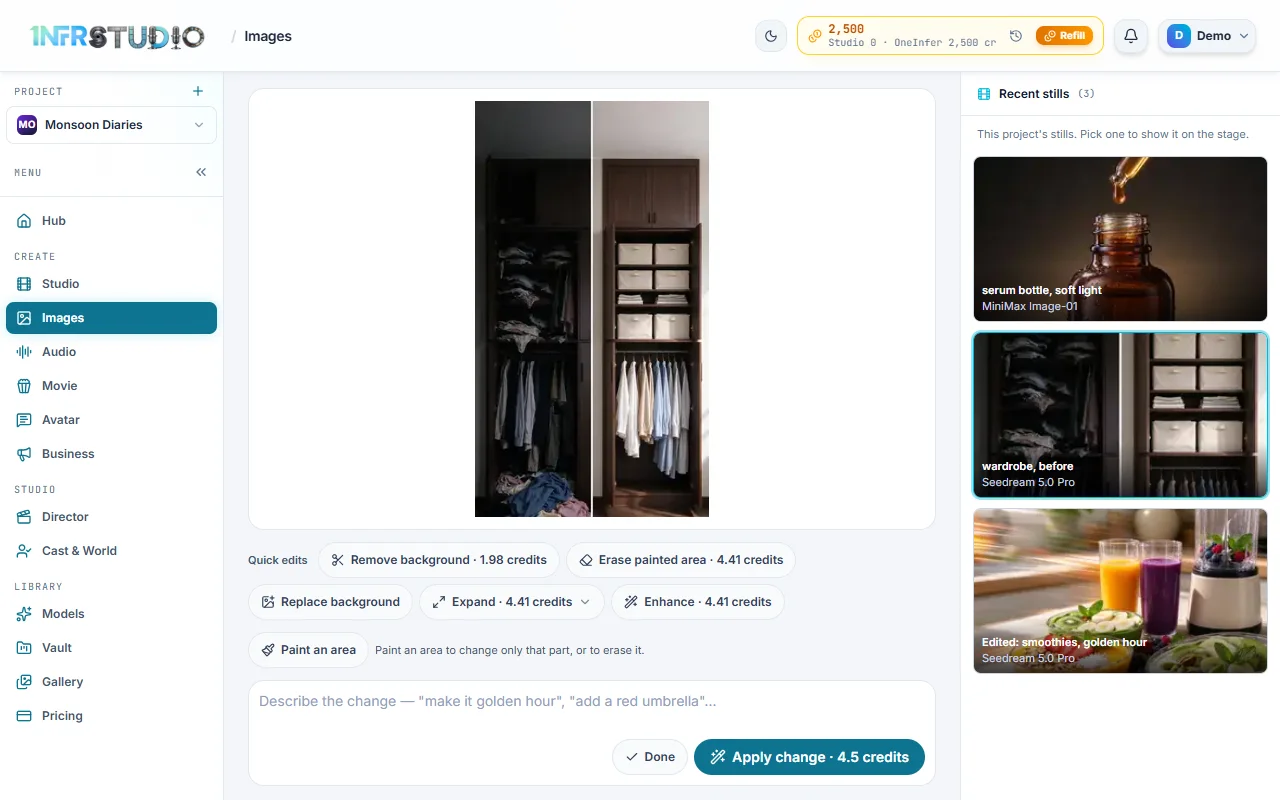
The Quick edits row has a price on each button:
| Button | What it does | Needs |
|---|---|---|
| Remove background | Cuts the subject out on a clear background | The picture |
| Erase painted area | Removes whatever you painted over and fills it in | Paint |
| Replace background | Keeps the subject and draws a new background from your words | Words |
| Expand | Extends the picture to a new shape: 1:1, 2:3, 3:2, 3:4, 4:3, 4:5, 5:4, 9:16 or 16:9 | The picture; words are optional |
| Enhance | Sharpens and improves the picture | The picture |
At the time of writing these cost about 2 credits for Remove background and about 4.4 credits each for Erase painted area, Expand and Enhance, and Apply change about 4.5. Replace background is priced like a still from ByteDance Seedream 5.0 Pro.
To change something by describing it, type in the box ("make it golden hour", "add a red umbrella") and press Apply change, or Ctrl+Enter. If you painted an area first, the change applies only inside it.
To paint: press Paint an area and pick a brush (S, M or L). Clear paint starts again. Painting narrows an edit to that spot, or marks what Erase painted area removes.
Results and Recent stills
Under a picture:
- Download saves it.
- Save to vault keeps it (the button then reads In your vault). Pictures that come back inline are saved for you.
- Edit opens the panel above.
- Send to Studio has Start, Look and End: the picture becomes the first frame, a look reference or the last frame of a clip.
- Clear render removes it from the stage and keeps your reference pictures.
Recent stills lists this project's latest pictures (up to 40), newest first, each with its model. Press one to show it on the stage with its shape. Only pictures made on this screen appear there, not uploads.
Questions
How many pictures does one press make?
One. Press again for another; each press is charged.
Why did my model change when I added pictures?
The model you chose takes fewer reference pictures than you added, so Studio moved you to ByteDance Seedream 5.0 Pro, which takes 14, and told you with a message.
Can I choose the resolution?
Not on this screen. Each model makes its own size. To sharpen a picture, run Enhance on the result.
Does an edit change my original?
No. Each edit saves a new picture. Back to the original gets you back to where you started.