DocsMake videos
Business
Business makes short videos for selling. Paste a link to your product and get an ad, or add a PDF of slides and get a narrated video, with a presenter on screen if you want one.
What you will see
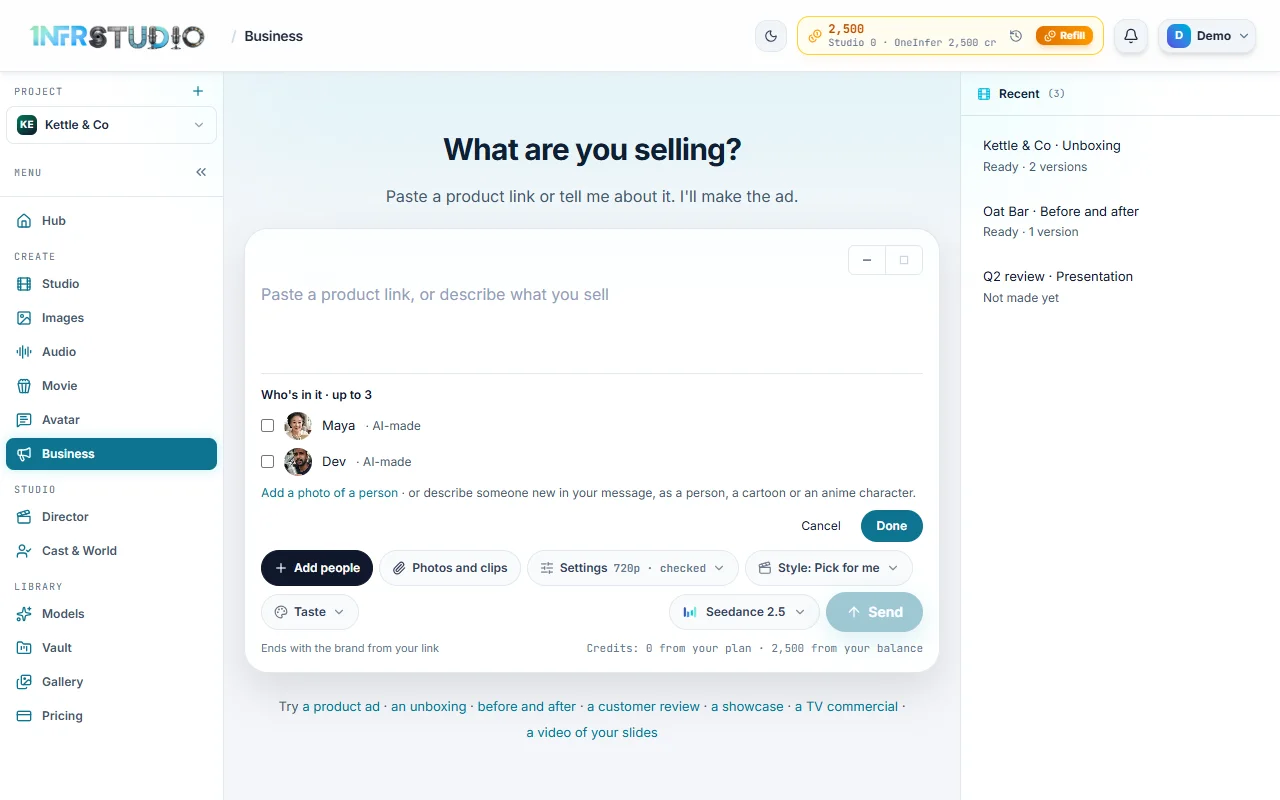
Open Business in the menu on the left. At the top, three steps show where you are: 1 Describe, 2 Review the plan and 3 Make it. The page asks What are you selling? and has one message box. Under it are the controls for the ad, and on the right, in Recent, are your earlier ads.
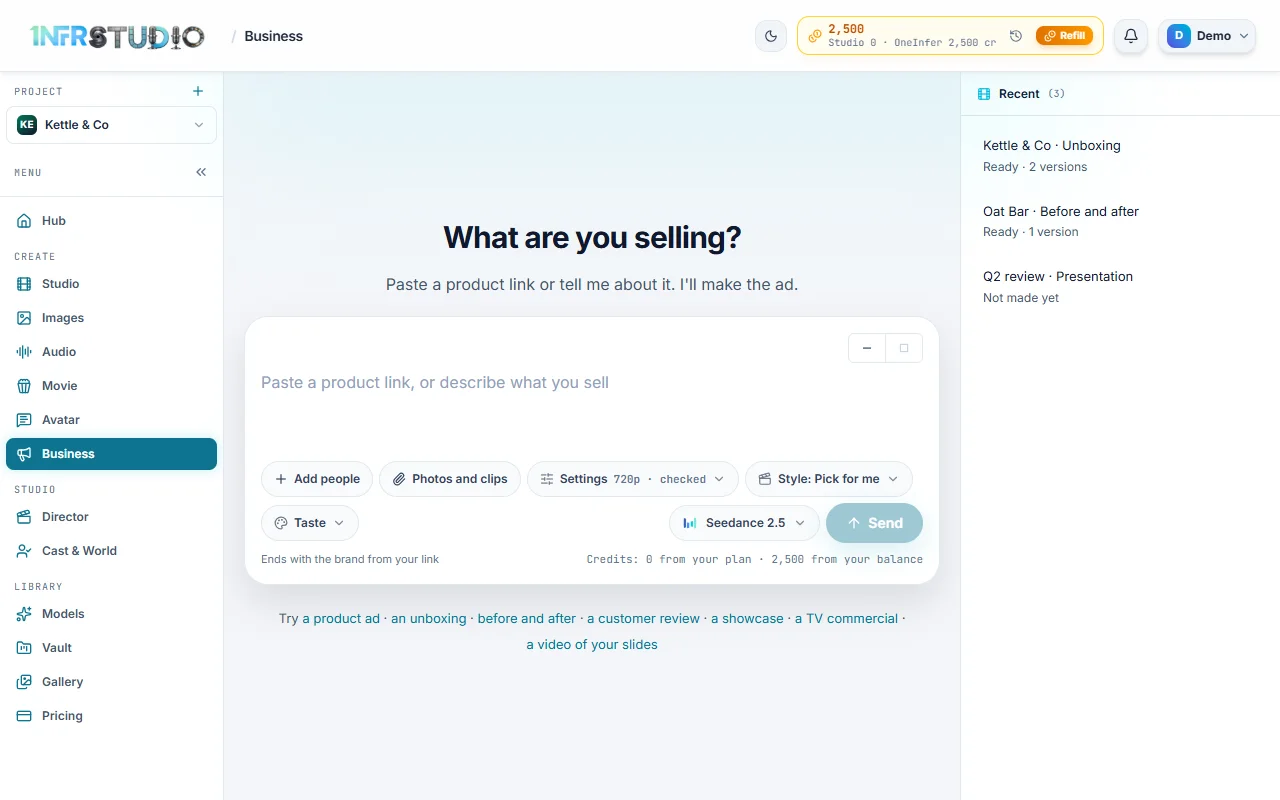
Under the box, left to right:
| Control | What it does |
|---|---|
| Add cast | Puts people from your Cast & World, or a photo of a real person, in the ad. See Add cast. |
| Photos and clips | Adds pictures of your product, or your own video clips. See Photos and clips. |
| Add slides (PDF) | Only with the Presentation style. See the section on turning slides into a video below. |
| Settings | One chip with the resolution, whether every shot is checked, the Taste and, for a presentation, the Presenter. Its summary reads like 720p · checked · Film noir. See Settings. |
| Style | How the ad is told. See Style. |
| The model name | The video model that makes the shots. Its list shows what the ad would cost with each model once there is a plan. |
| Plan my ad · free | Sends your message and gets a plan back. Planning costs no credits. With the Presentation style it reads Plan my video · free. Once there is a plan it reads Send change. |
Below the box, the line Ends with the brand from your link is the end card, and the Credits line shows what you have: credits from your plan and credits from your balance.
Start an ad from a link
- Paste a link to your product page into the box, or describe what you sell in a sentence. Under the box there are starting points: a product ad, an unboxing, before and after, a customer review, a showcase, a TV commercial and a video of your slides. Pressing one fills the box and picks the matching style.
- Press Plan my ad · free. Studio reads the page, finds your product and your brand, and writes a plan.
- The plan comes back as a message: what the ad will show, how long it is and where it will play, with a button that carries the price, for example Make it · about 420 credits. The price is on the button before you press it.
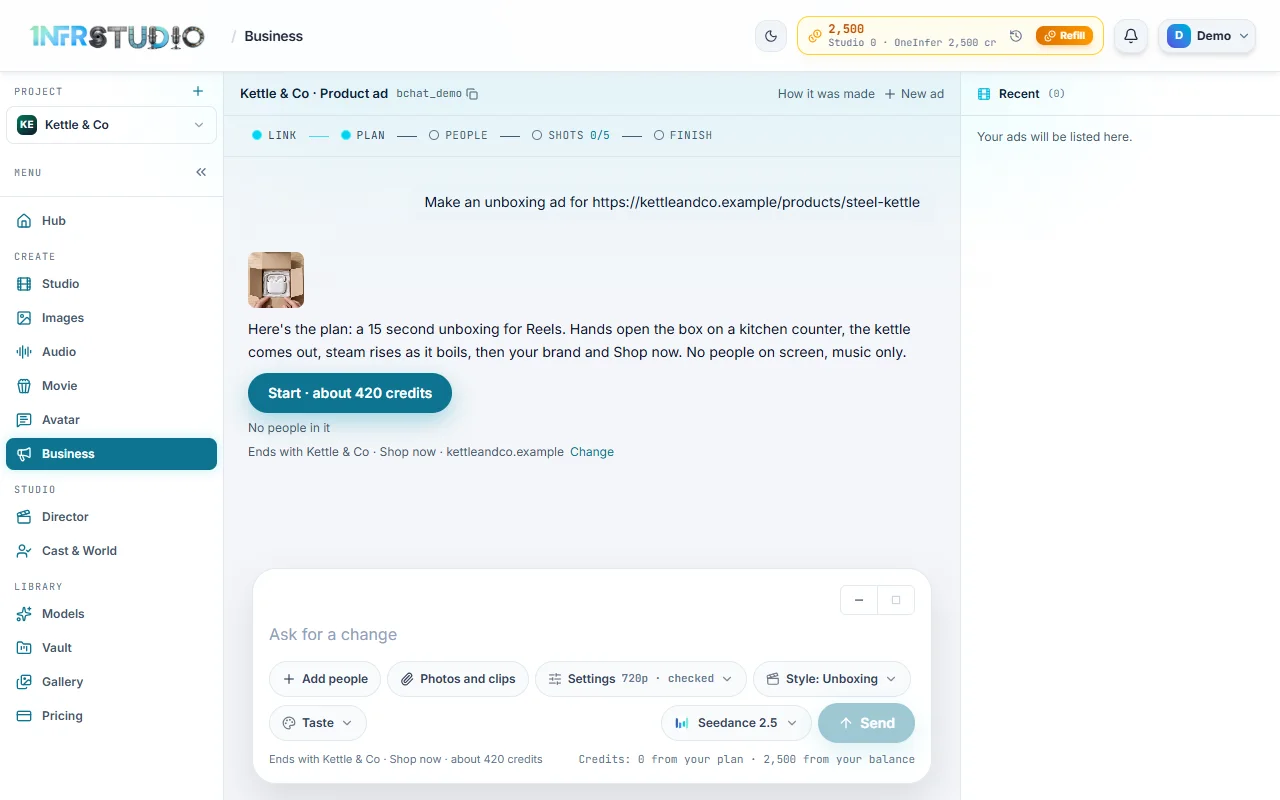
The message box stays open under the plan. To change something, say so in plain words, for example "make it shorter" or "show the kettle on a wooden table", and press Send change. A new plan replaces the old one, and the price on the button follows it.
The end card
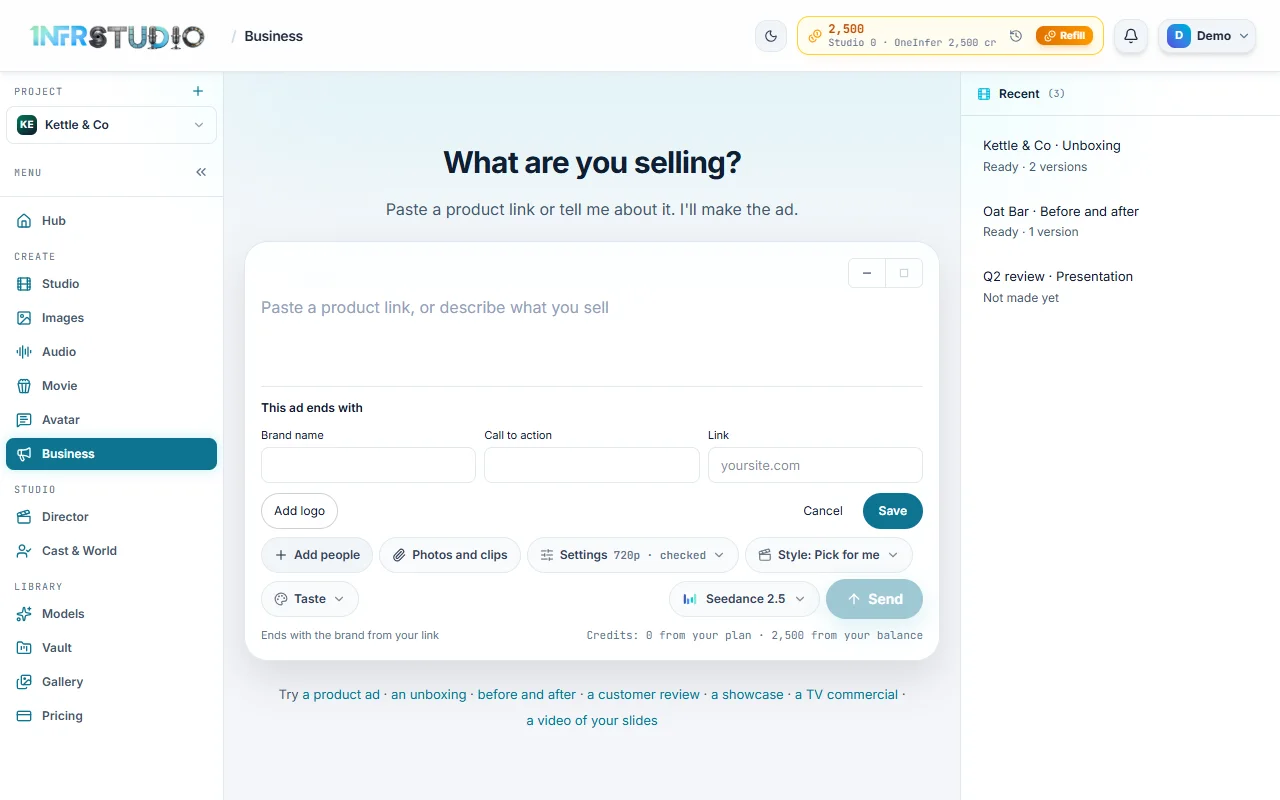
Every ad ends on a card with your brand name, a call to action and your link. Before you set one, Studio takes them from the link you pasted: the line under the box reads Ends with the brand from your link, and then Ends with and your brand, call to action and link. The call to action starts as Shop now.
To change it, press that line, or Change beside it under the plan. Fill in Brand name, Call to action and Link, add a logo with Add logo (Change logo when there is one), and press Save. Each ad keeps its own end card.
Settings, model and sizes
Settings is one chip. Its parts are saved on this ad at once.
- Resolution: the sizes of picture the chosen model can make. Some models make only one, and then the menu says which.
- Checks: Checked or Not checked. Checked is on unless you turn it off. With checks, each shot is compared with your product and made again if it is wrong. Not checked costs less.
- Taste: the look of every shot. See Taste.
- Presenter: only for a presentation. See Presenter.
The model is the pill with its name, to the left of the main button. Open it to choose another model. Once there is a plan, each model in the list shows what the ad would cost with it.
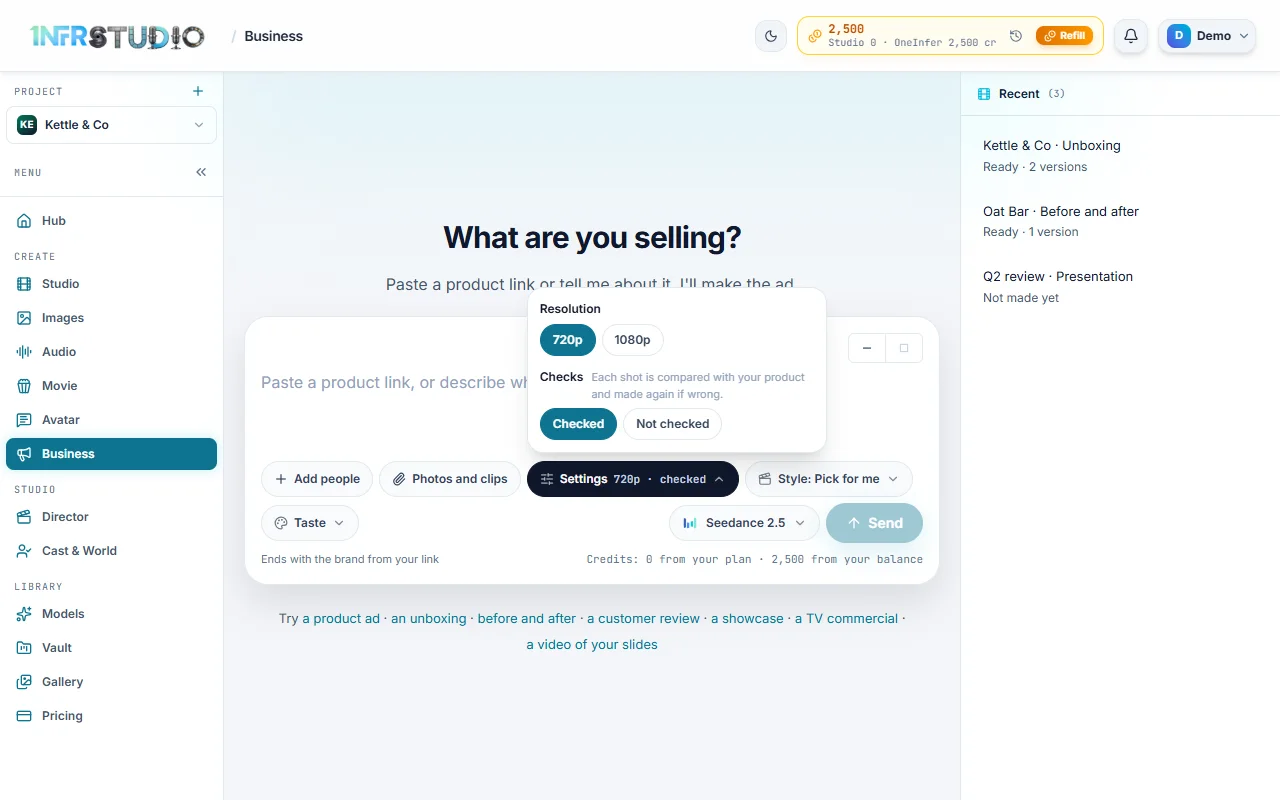
Sizes are not chosen up front. The ad is made for the places the plan lists, such as Reels and YouTube, and each place is a size. When the ad is ready you see a button for each place above the versions. See When it is ready.
A presentation has no resolution or checks and no model pill, because it is not made from shots. Its Settings holds Taste and Presenter.
Style: how the ad is told
Business lets you choose how the ad is told. Open Style. It starts as Style: Pick for me, which tries a different way from your last ads.
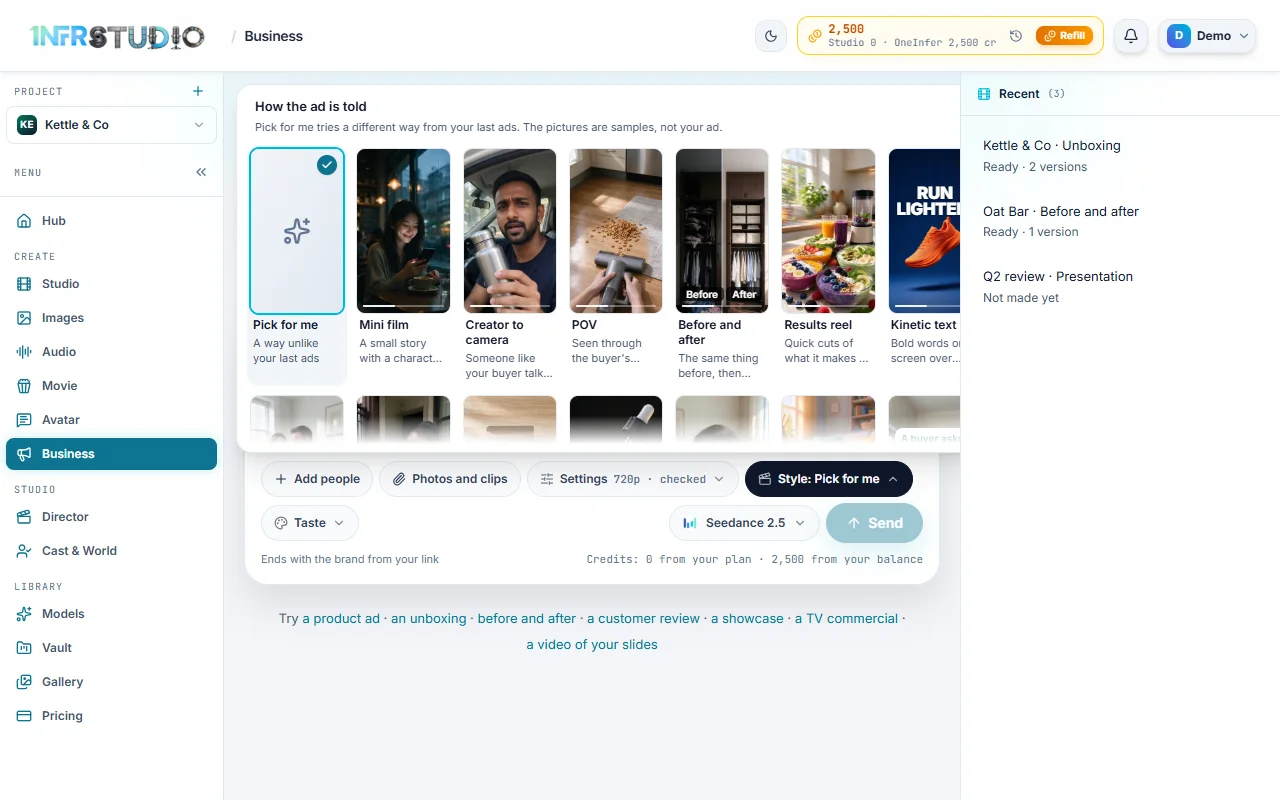
Each way is a card with a sample picture and its name. The pictures are samples, not your ad. A few of the ways Studio offers today:
- Mini film: a small story with a character and a turn.
- Creator to camera: someone like your buyer talks to their phone.
- Before and after: the same thing before, then after.
- Results reel: quick cuts of what it makes or does, to music.
- Kinetic text: bold words on screen over strong pictures, for watching with the sound off.
- Unboxing, Showcase, Customer review, Split screen, 3 reasons, ASMR and more. Scroll the menu for all of them.
- Presentation: not an ad but your slides as a narrated video. See Presentations.
Some cards carry a small tag saying what that way needs from you:
| Tag | What it means |
|---|---|
| Needs your picture | You add the picture it is built around, for example a picture to stand in front of. |
| Things you can hold | It suits a product that can be held and shown in hands. |
| Needs a real review | It says one real customer review, which you give it. |
| Needs your slides (PDF) | It is made from a PDF of slides. |
The list is Studio's and it grows, so the cards you see may be more than the ones named here. The style is saved on the ad at once, like Settings.
Taste: the look
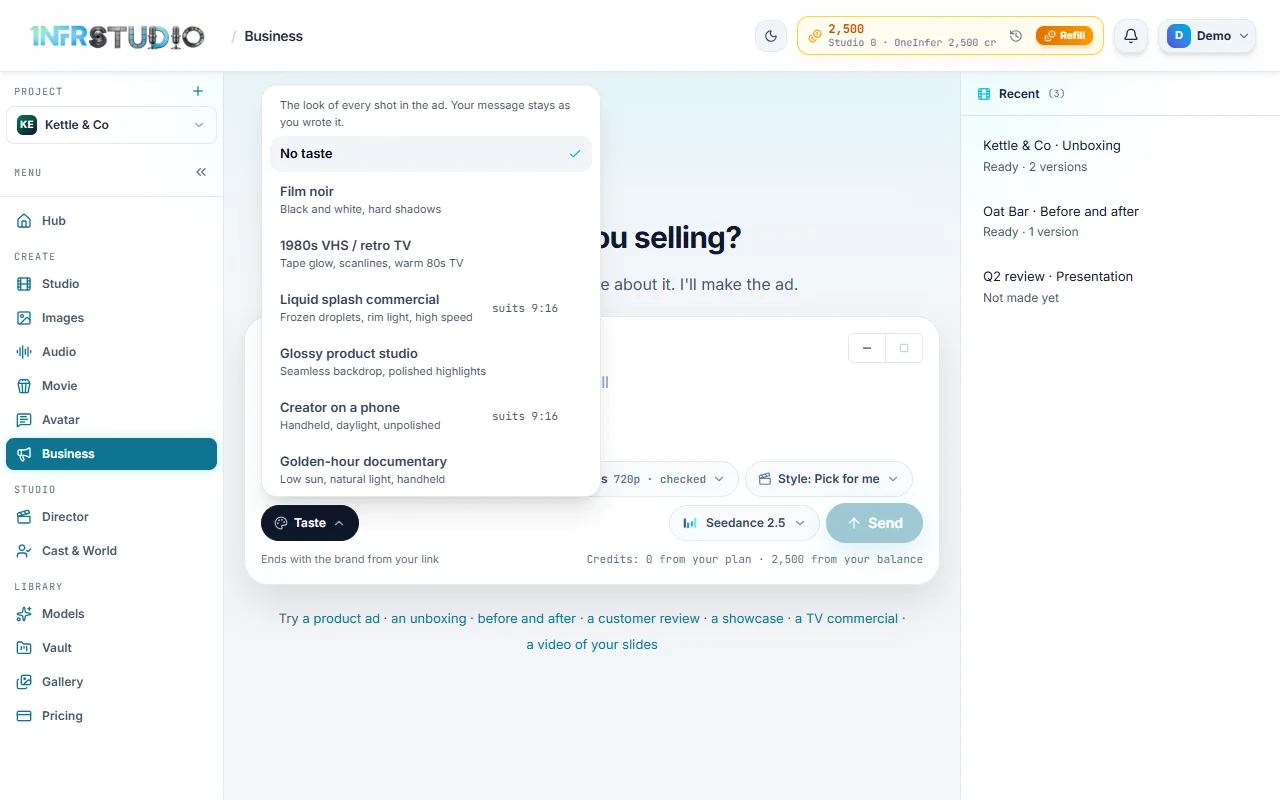
Taste is a section of Settings. It is the look of every shot: for example Film noir, 1980s VHS / retro TV, Glossy product studio or Golden-hour documentary. It starts as No taste. A taste goes to the planner that writes the ad. Your message stays exactly as you wrote it. Some tastes say which shape they suit, for example suits 9:16; picking one never changes the shape.
Photos and clips
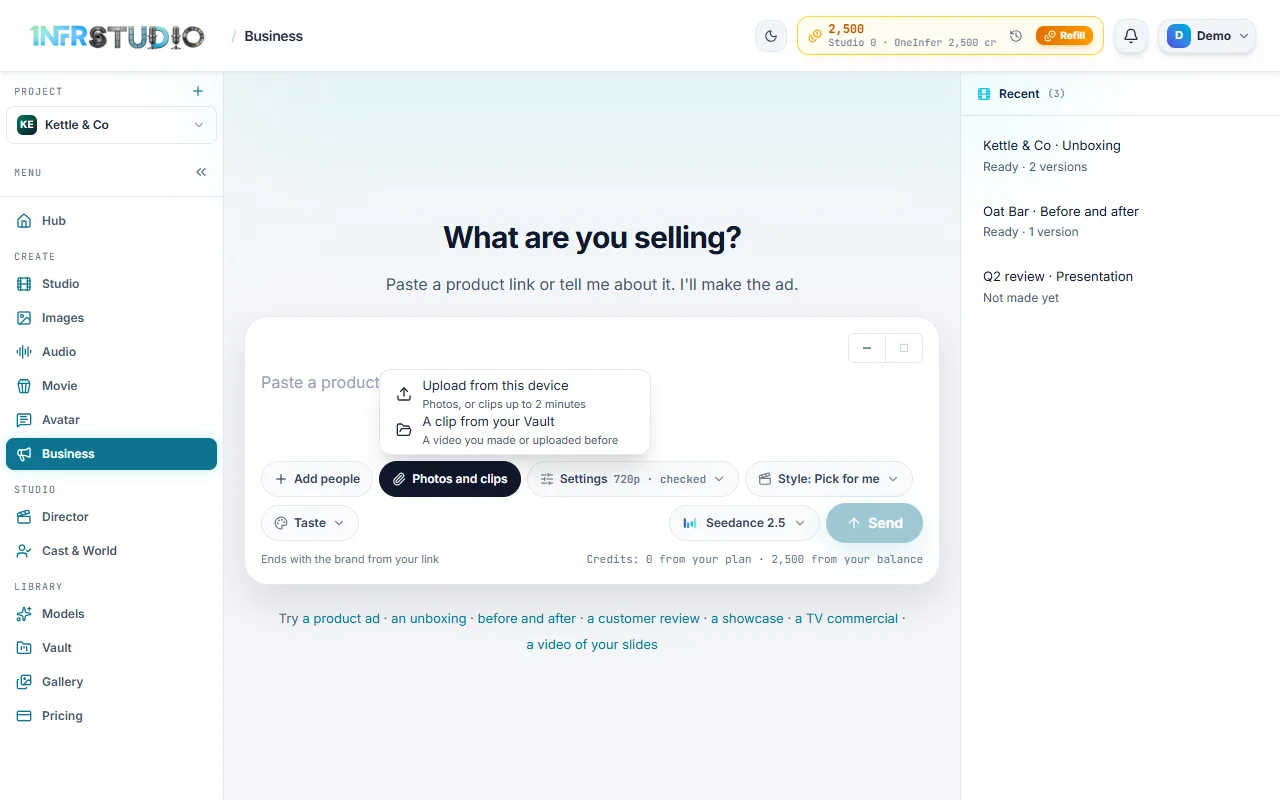
Press Photos and clips to add your own material. It opens two choices:
- Upload from this device: photos, or clips up to 2 minutes.
- A clip from your Vault: a video you made or uploaded before.
Photos are pictures of your product. You can add up to 4 with a message.
Clips are your own videos: a demo, an unboxing you filmed, a customer on camera. A message can carry up to 5 clips, each up to 2 minutes, as MP4, MOV or WebM files. A clip that is too long is refused before it is sent, with a message telling you how long it is and to trim it, or to upload only the part you want.
Studio looks at your clips and decides where to play them. They are used as real footage: the stretch it picks plays in the ad exactly as you filmed it, with its own sound, and is not redrawn. In the plan you can read where each clip plays. Say so in the chat if you want it elsewhere.
Each small picture or clip above the box has a Remove button, in case you change your mind before sending.
Add cast
Add cast puts people in the ad, up to 3. It opens Who's in it with:
- People from your Cast & World. The people listed are those in the project you are working in. An actor made with Studio is marked AI-made.
- A photo of a real person. Press Add a photo of a person, add the picture and type the person's name in Their name. A real person only talks to the camera, so they are marked photo · talking parts only.
- Someone new. Describe them in your message instead, as a person, a cartoon or an anime character, and Studio makes them for this ad.
Consent for real faces
A real person's face needs their permission. When you add a photo, a box appears: I'm the person in each photo, or they agreed to be in this ad. Done stays off until you tick it. Only tick it when it is true.
A real person already in your Cast & World is marked real person · talking parts only. If their face check has not been done, they show real person · face check not done, and you cannot pick them until it is.
Once you have picked people, the pill reads With and their names. The plan then lists who is in the ad and where each comes from: your cast, your photo or made up for this ad. If the plan has nobody it says No people in it.
Start it
When the plan is right, press Make it · about N credits. The price is on the button, and under the box, before you press it. Your credits are shown at the foot of the box: from your plan, then from your balance.
The ad is made while you do something else. A line shows what it is on and a bar shows how far it is. You can leave: the ad stays in Recent with its state (Ready, Not made yet, or what it is making), and on a smaller screen Recent ads is a menu at the top.
If something goes wrong, the ad shows Needs you in Recent, says what happened, and offers Try again.
How it was made
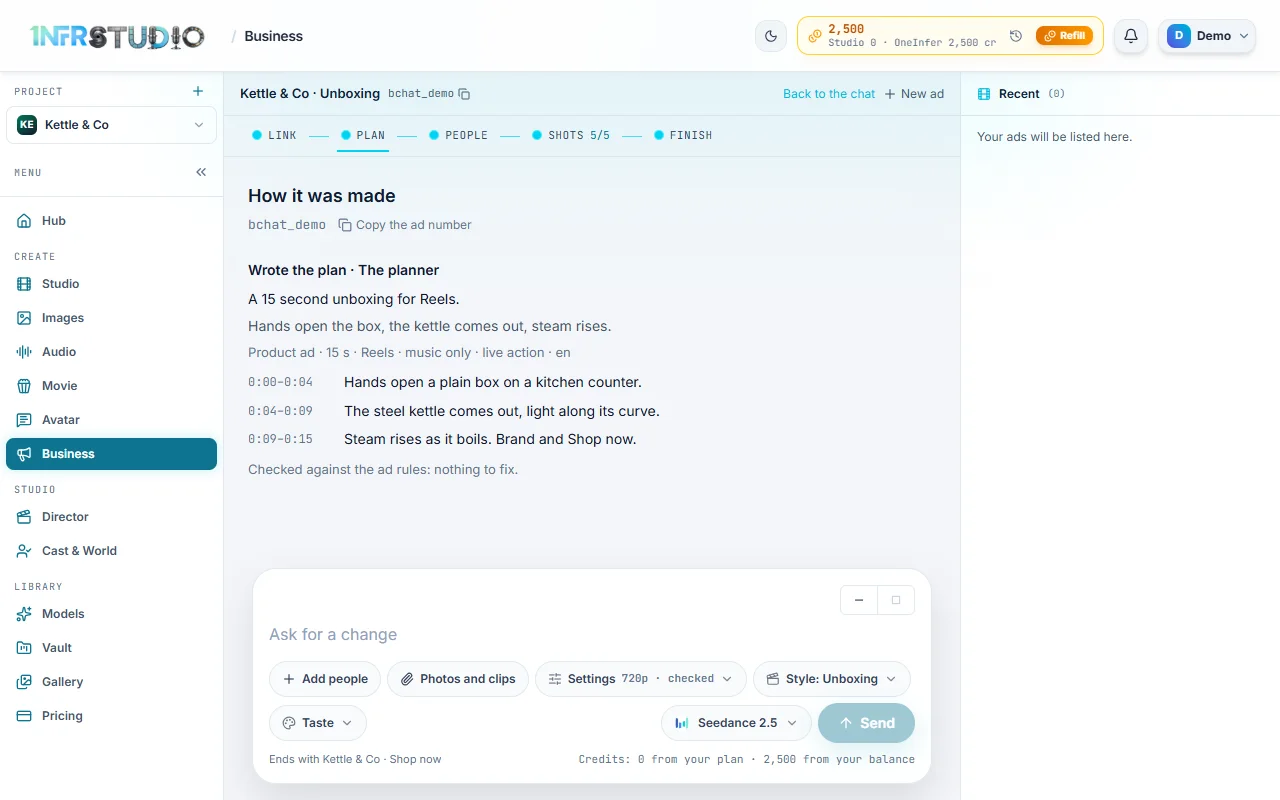
Open an ad and press How it was made at the top to see the work, step by step. The three steps at the top stay as they are. Below them, only while the ad is being made or when you open its work, a longer strip runs: Link, Plan, People, Shots, Openings (when the ad has them) and Finish. Press a step to see what was done there: the plan's beats, who is in it, each shot's prompt with a Copy the prompt button, and the sound and end card. You can also copy the ad's number, to quote when you ask for help. This view is for looking only. Press Back to the chat to return.
When it is ready
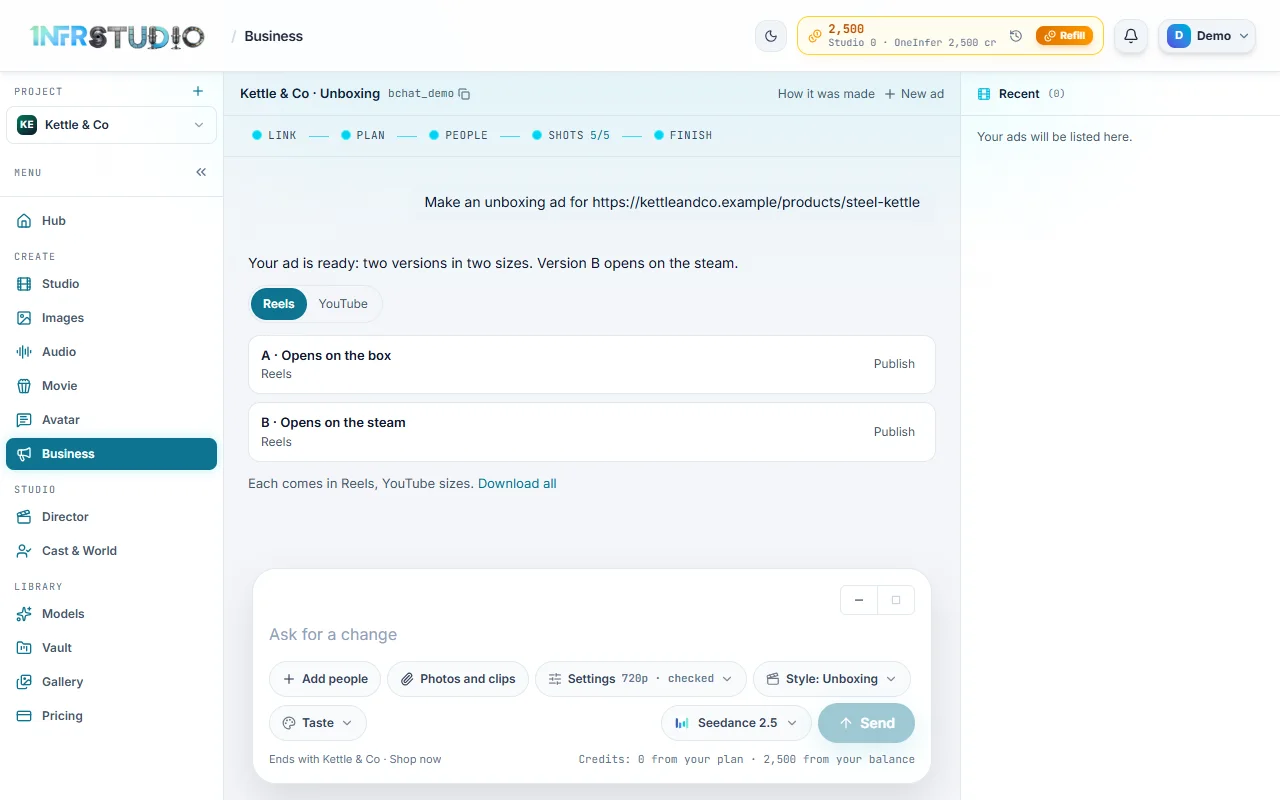
The finished ad comes back in the chat as versions, such as A and B. Each is a row with a small preview you can press to play, a Download button and Publish, which offers it to the Gallery.
- When the ad comes in more than one size, there is a button for each place, for example Reels and YouTube. Press one to see every version in that size.
- Download all saves every version in every size.
- To change the ad, ask in the box under it.
Presentations
Business can also turn slides into a narrated video: a narrator says what is on each slide, with music, and your end card at the close.
- Open Style and choose Presentation. The page now asks What are you presenting? and a new pill, Add slides (PDF), appears. The model pill goes away, and Settings keeps only Taste and Presenter.
- Press Add slides (PDF) and choose your file. It must be a PDF, up to 50 MB and 60 pages. For PowerPoint, Keynote or Google Slides, save it as a PDF first (PowerPoint and Keynote: File, Export, PDF; Google Slides: File, Download, PDF). A PowerPoint or Keynote file is refused with that same advice.
- Studio reads the PDF into slides and shows the first few, the file's name and the number of slides. If some slides are only pictures, it reminds you to say what they show.
- Say who the video is for, for example "Make a video of these slides for our investors", and press Plan my video · free.
The script
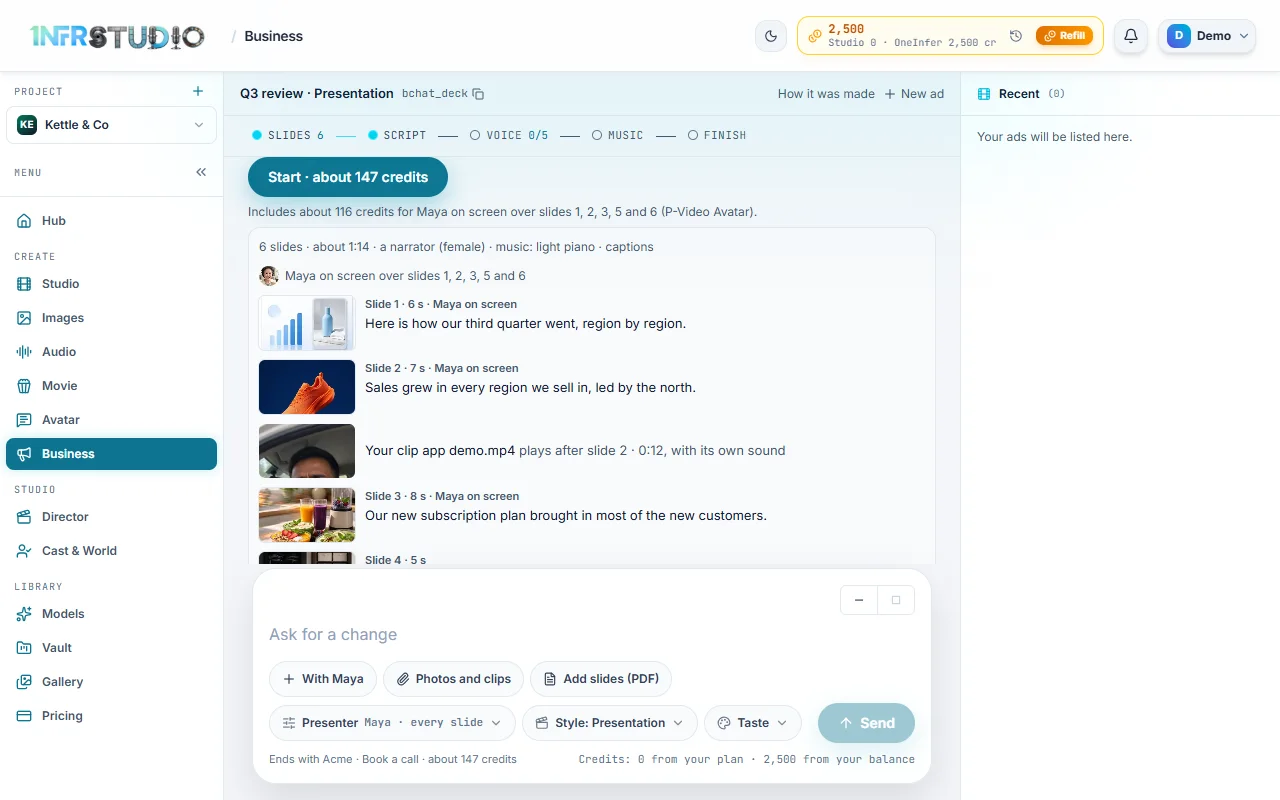
The plan comes back as a script you read before you spend anything. It starts with a summary line: how many slides, about how long, a narrator or music only, the music, and captions. Then it lists every slide with its picture, how long it shows, and the line the narrator will say. A slide with no words is marked Shown without words. Press Show all (with the number of slides) to see every slide, and a slide's picture to see it large.
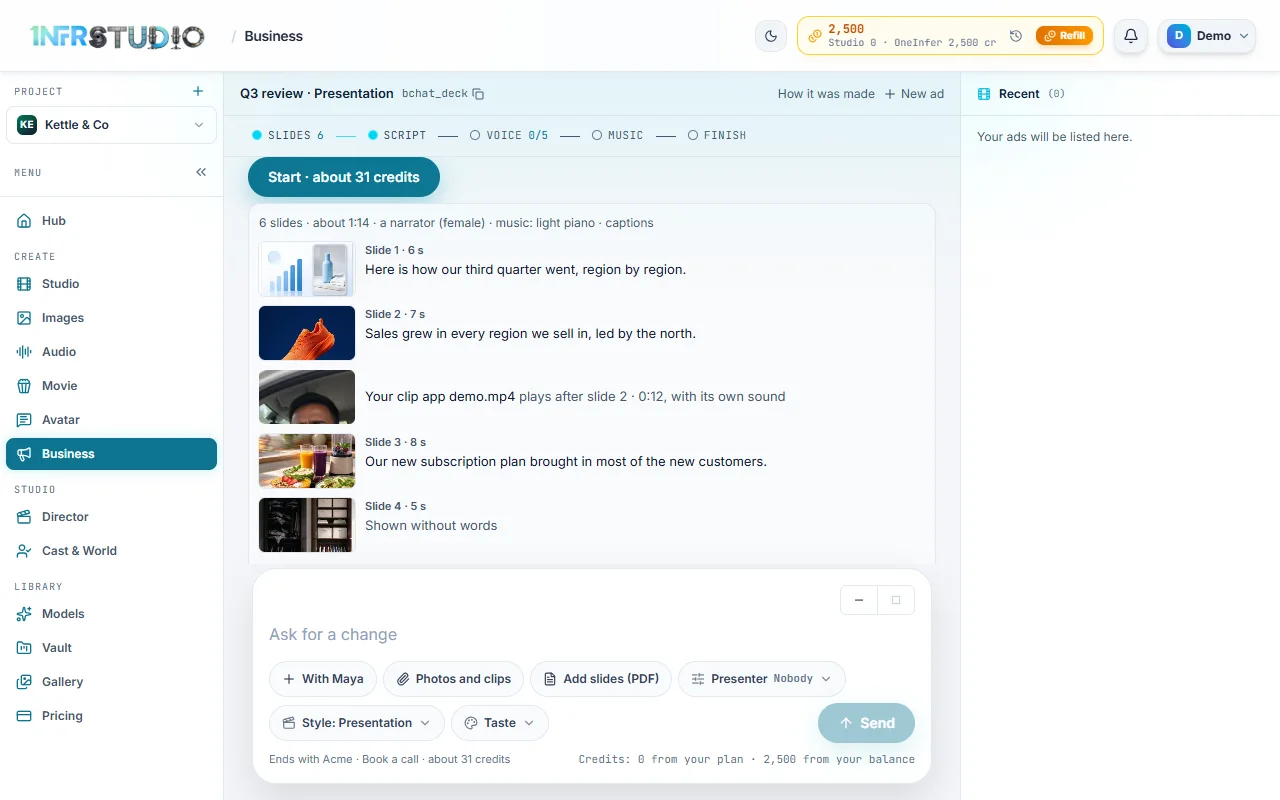
To change the script, ask in the chat, for example "make slide 3 shorter". The summary line always shows the voice, music and captions the plan has.
Your own clips with slides
Add clips with Photos and clips, as for an ad, and say where they go. A clip plays before the slides, after the slides, or after a slide you name, between them. In the script each shows as a row such as Your clip app demo.mp4 plays after slide 2, with its length and with its own sound.
The end card
A presentation ends on your end card too, with your brand name, call to action and link. It is set the same way as for an ad. See The end card.
What it costs
The price is on the Make it button before you spend. As a guide, 10 slides with music cost about 31 credits, and about 12 credits without music. A presenter adds to that. The steps strip for a presentation reads Slides, Script, Voice, Music and Finish.
Presenter
A presentation can have a person on screen who says the narration, with their lips matched to it. Presenter is a section of Settings once Studio offers presenters.
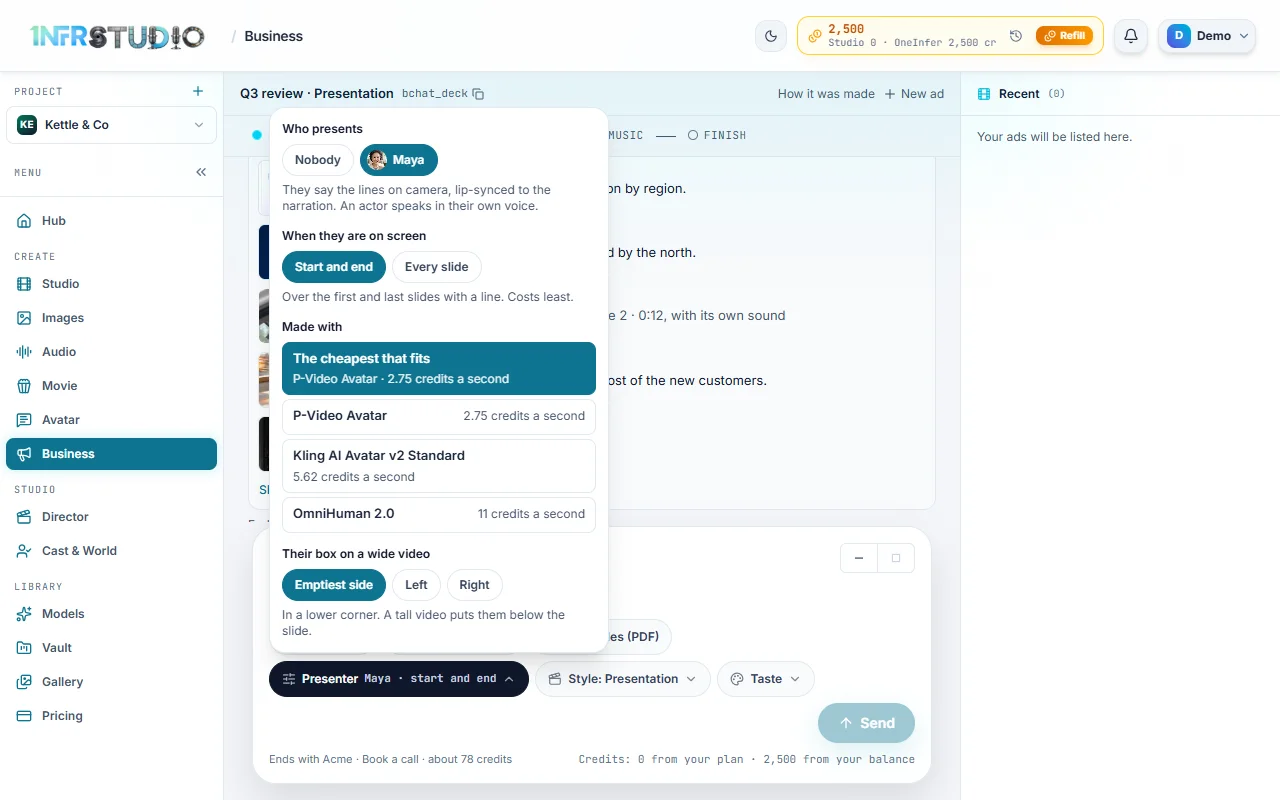
- Who presents. Choose Nobody, or one of the people you added with Add cast. Pick someone with Add cast first. An actor speaks in their own voice.
- When they are on screen. Start and end shows them over the first and last slides with a line, and costs least. Every slide shows them over every slide with a line, and each second on screen is priced.
- Made with. The model that makes the presenter. The cheapest that fits is the default, and the menu names that model and its price in credits a second. Other models cost more a second. The longest line a model can make differs, and if none can make a slide this long, Studio says so under the price.
- Their box on a wide video. Emptiest side, Left or Right: the presenter sits in a lower corner. A tall video puts them below the slide.
The choice is saved at once and changes the price. Under Make it, Studio says how much of it is the presenter, for example Includes about 116 credits for Maya on screen over slides 1, 2, 3, 5 and 6, and the script marks each slide they are on.
As an example, on a 75 second video with the cheapest model, P-Video Avatar at 2.75 credits a second:
| When they are on screen | Presenter's share |
|---|---|
| Start and end | about 39 credits |
| Every slide | about 206 credits |
Add the video's own price from the Make it button. A presenter already made for an earlier version costs no new credits.
Questions
What will it cost?
The price is on the Make it button before the ad is made, and the ad is not made until you press it.
Can I use my own video clips?
Yes. Add up to 5 clips of up to 2 minutes each with Photos and clips, from your device or your Vault. Studio plays stretches of them as filmed, with their own sound, and does not redraw them.
Can a real person be in an ad?
Yes, with their permission. Add their photo in Add cast and tick the box saying they are you or that they agreed. A real person only talks to the camera. A real person in Cast & World needs their face check done first.
Can I make an ad without a link?
Yes. Describe what you sell in the box, and add photos of it with Photos and clips.
Can I upload a PowerPoint file?
No, only a PDF, up to 50 MB and 60 pages. Save the slides as a PDF from PowerPoint, Keynote or Google Slides and add that.
Who can be the presenter?
Anyone you added with Add cast, an actor from your Cast & World or a photo of a real person with consent. Pick Nobody for a video with only a narrator.
Where are my ads?
In Recent on the right, or Recent ads at the top on a smaller screen. Each ad is listed with its state, and you can open it, play it, download it and change it.