
DocsChoose and pay
Models
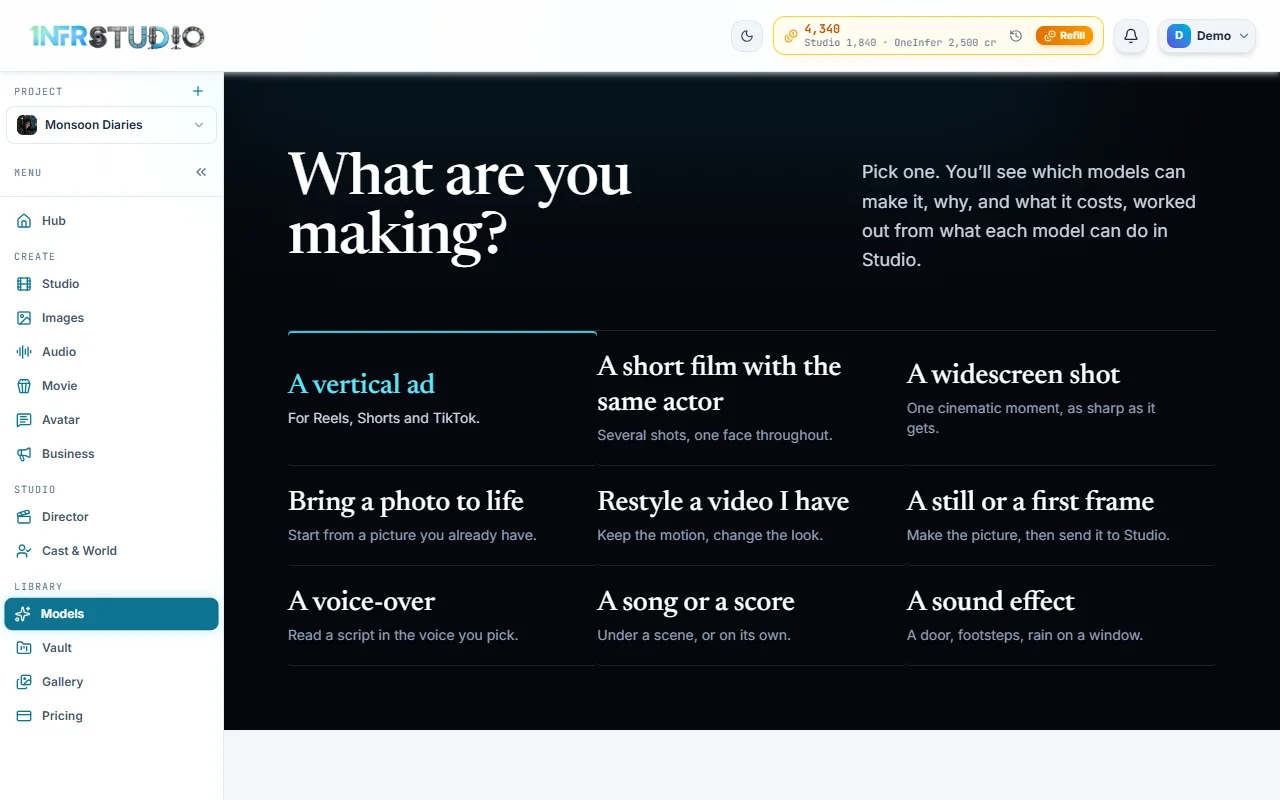
There are many models, and each has limits. On the Models page you say what you are making, and Studio shows only the ones that can make it, with what each would cost.
What you will make
A choice of model, without reading a spec sheet. You say what the job is, a vertical ad or a voice-over, set a length or two, and Studio checks every model against what the job needs. The ones that fit are listed, each with the reasons and a price. Press the model you want and Studio opens the right screen with your words, the shape and the length already filled in.
A choice from start to finish
Say you need a 15-second vertical ad for Reels, with sound.
- Open Models in the menu. The page asks What are you making?
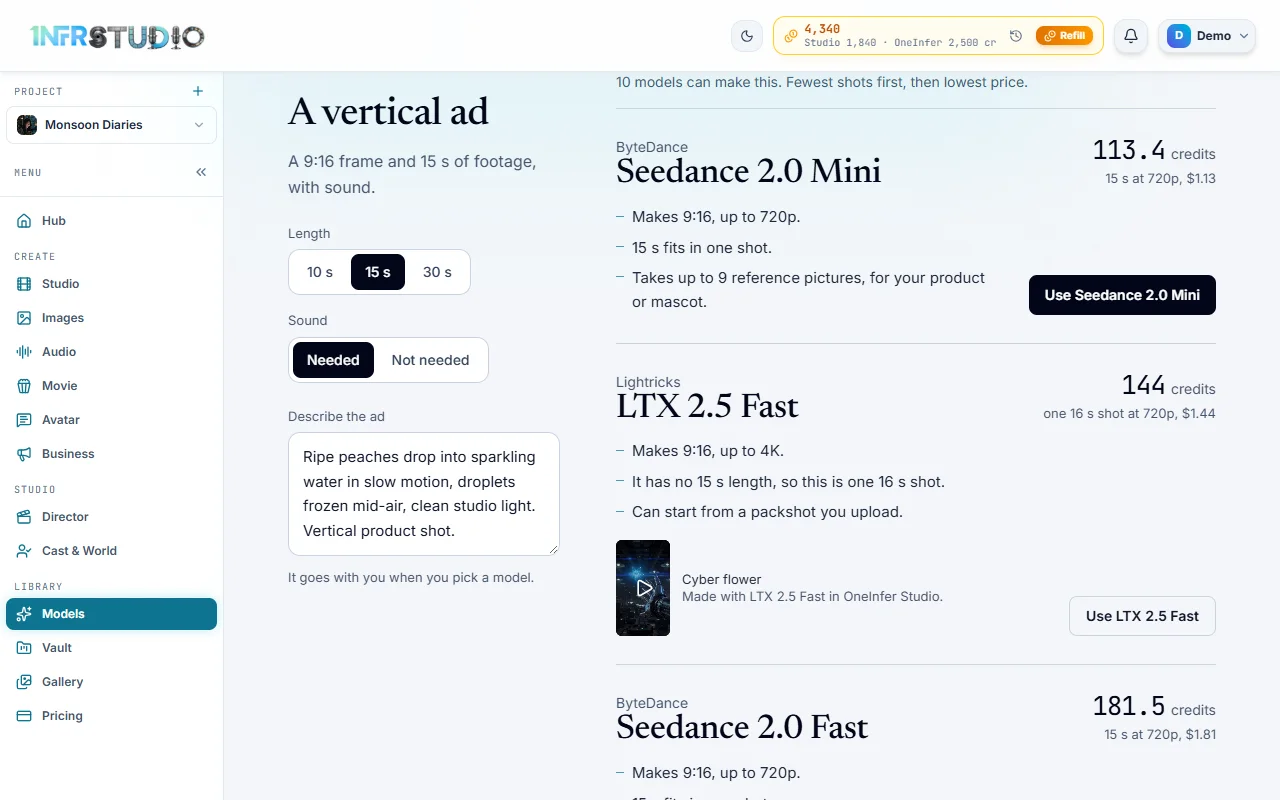
- Choose A vertical ad. The page says what the job needs: "A 9:16 frame and 15 s of footage, with sound."
- Under Length, choose 15 s. Under Sound, leave Needed.
- Write what you want in Describe the ad. A sample is there to start from. It goes with you when you pick a model.
- Read the list. It says how many models can make it, for example "10 models can make this. Fewest shots first, then lowest price." Each row shows the maker, the model, the reasons it fits, a price, and a button.
- Press Use Seedance 2.0 Mini. Studio opens with that model, the 9:16 shape, 15 seconds and your words.
If you are not signed in, Studio asks you to sign in first and then takes you there.
The jobs
| Job | What you set | Where it opens |
|---|---|---|
| A vertical ad | Length (10, 15 or 30 s), Sound | Studio |
| A short film with the same actor | Running time (30 s, 1 min or 2 min) | Movie and Film, with Plan it in Movie |
| A widescreen shot | Frame (16:9 or 21:9 cinema), At least (1080p or 4K) | Studio |
| Bring a photo to life | Pictures (Start only or Start and end) | Studio |
| Restyle a video I have | Nothing | Studio |
| A still or a first frame | Frame, References | Images |
| A voice-over | Language, Script length | Audio, with Use in Audio |
| A song or a score | Vocals (Instrumental or Sung), Length | Audio |
| A sound effect | Length (2, 5, 10 or 30 s) | Audio |
Reading the list
- The order is said on the page. For a vertical ad and a film it is fewest shots first, then the lowest price. For every other job it is the lowest price first.
- The reasons come from the same limits the screens use: the shapes and the biggest size the model makes, whether it has sound, how many reference pictures it takes, and how a long job is split. A model that cannot make the exact length is priced for the next length up, and the row says so ("It has no 15 s length, so this is one 16 s shot."). A job longer than a model's longest clip is split into shots, to be cut together in Director.
- The price is in credits, with the dollars under it and the length and size it was worked out for, for example "113.4 credits, 15 s at 720p, $1.13". A model whose price is set after the render says billed after render.
- A sample clip made with the model sometimes shows beside the row.
- Why the other models can't: the link under the list opens the models that did not fit, grouped by the reason, such as "Doesn't make 9:16".
Prices follow the live price list; the Generate button on the screen it opens is the final number. See Credits and plans.
Questions
Does the page pick for me?
It narrows the list. The order is only the one stated on the page. It does not score quality, so read the reasons and look at the samples.
Why is my model not listed?
Open the link under the list. Each model that did not fit gives its reason, such as "Doesn't make 9:16" or "No sound option in Studio".
Is anything charged when I press a model's button?
No. The button opens the screen with your choices filled in. You pay when you press Generate there.