DocsYour library
Gallery
The Gallery is the public side of Studio. Watch films and shots other people made, open one to see the prompt behind it, and send your own work for review.
What you will see
Open Gallery in the menu. It is open to everyone, signed in or not. The top of the page plays the newest film. Below it are two lists:
- Films: short films that keep one cast from the first shot to the last, each started as a brief in Movie and Film.
- Shots: single clips from every model, each one prompt, one model, one clip.
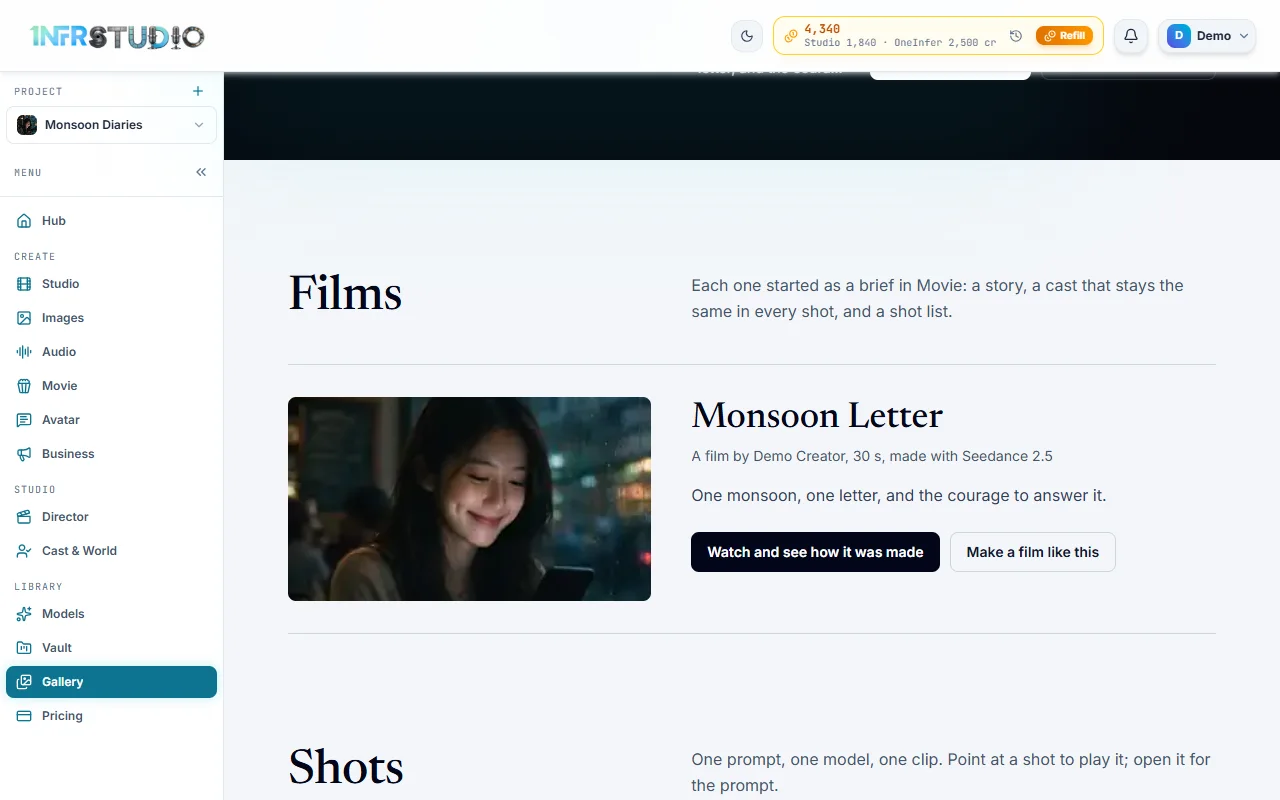
Under Shots, the chips Every model and one per model, each with a count, narrow the list to a model. When there are vertical clips, Any frame, Widescreen and Vertical narrow it by shape. Point at a shot to play it.
Here are two shots from the Gallery, with the model that made them.
Opening a work
Press any film or shot to open it. The viewer shows The story (for a film), the cast, the shot list, The brief (or The prompt for a shot) and the models used, as far as the creator chose to show them. It also has:
- Make one like this, or Make a film like this for a film. It opens the right screen with the prompt, the model and the shape already filled in, so you can change the words and make your own. You pay for what you make, not for opening it.
- Copy prompt or Copy the brief.
- YouTube and Instagram, links to the post, when the work was put up there.
Not every work shows its prompt. A creator can keep it private.
Publishing your work
Only clips and films that Studio made for you can be published. A file you uploaded stays private. Publishing is a request: staff look at every work before it appears.
- Open your Vault. On a clip Studio made, press Publish to gallery. For a finished film, press Publish on the film (see Movie and Film).
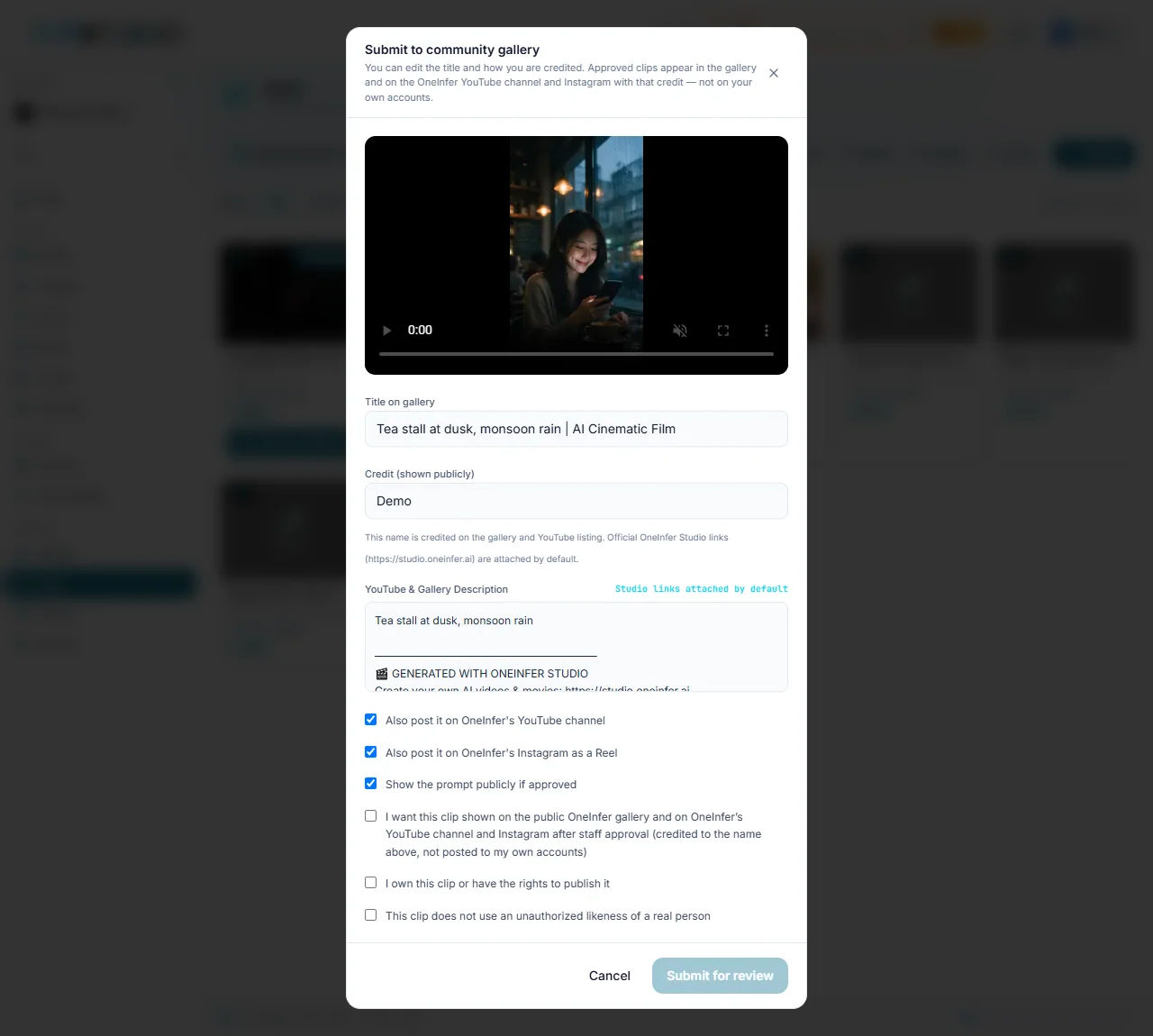
- Fill in the form Submit to community gallery:
- Title on gallery: starts as a title written from the clip's name; up to 120 characters.
- Credit (shown publicly): the name shown on the gallery and the listing; it starts as your own name, up to 80 characters.
- YouTube & Gallery Description: filled in for you with links to Studio. Edit it if you like.
- Also post it on OneInfer's YouTube channel, and Also post it on OneInfer's Instagram as a Reel when Instagram is on. Both are ticked at first.
- Show the prompt publicly if approved, ticked at first. Untick it to keep the prompt private.
- Tick the three checks: that you want the clip shown on the public gallery after staff approval, that you own it or have the rights to publish it, and that it does not use an unauthorized likeness of a real person. Submit for review stays grey until all three are ticked.
- Press Submit for review. Your Vault stays private while you wait.
The clip's card in the Vault then reads:
| Card says | Meaning |
|---|---|
| Pending review | Waiting for staff. Press it to withdraw the submission. |
| In gallery | Approved and public. If Instagram is available you can also press it to post it there as a Reel. |
| Rejected — resubmit | Not accepted. Hover the card for the reason, then change what is needed and submit again. |
Support emails you after a decision. An approved work appears in the Gallery and on the OneInfer YouTube channel (and Instagram, if you ticked it) with your credit. It is posted by OneInfer, credited to you, and never to your own accounts.
Sharing your own work
You do not have to publish to show a clip to someone. On a clip's player and on a finished film, Share opens a window. On a computer it shows a QR code: scan it with your phone's camera and Studio opens there with this video, ready to share to Instagram, YouTube or another app, as yourself. The link works for a few hours. On a phone it opens the share sheet. A caption is offered with a copy button, because most apps do not fill it in for you. A video over 250 MB is too large to share from a phone; use Download instead.
Questions
Can I publish a clip I uploaded?
No. Only video generated in OneInfer can be sent to the Gallery. An upload from your computer stays private.
Who sees my prompt?
Only people who open your work, and only if you left Show the prompt publicly if approved ticked.
Is it posted to my own YouTube or Instagram?
No. An approved work is posted by OneInfer on its own channels, credited to the name you gave.
How long does review take?
The page does not say. Support emails you when there is a decision, and the card in your Vault shows the state.