DocsGet started
Getting started
This page takes you from a new account to a finished clip: signing in, a project to keep your work in, the menu, what credits are, and a first video.
What you will make
By the end of this page you will have one short video clip, made from a sentence you wrote, sitting in a project. It takes about three minutes, and Studio shows its price before you press the button. Everything else in Studio (pictures, long films, talking avatars, ads) works the same way: you describe it, you see the price, you press Generate or its twin, and the result lands in a project and in your Vault.
Sign in
Open studio.oneinfer.ai. Without an account you see a landing page with a wall of sample clips. Press Generate there, and the sign-in screen opens over a looping clip.
At the top of the card it says Welcome back, or Create your account if you are new. You can sign in with:
- Continue with Google, Continue with GitHub (and Continue with Microsoft when your workspace has it turned on).
- Sign in with OneInfer Portal (Shared SSO), if you already use OneInfer elsewhere.
- Your email: type it in Email address, then Continue with password, or Sign in with OTP to get a six digit code by email.
To make an account with your email, choose Need an account? Create one now, fill in your name, organisation, email, password and date of birth, accept the terms, and press Create OneInfer Account. Studio emails you a six digit code; enter it and press Verify email and create account.
Your free credits
A new account starts with 0 credits. Studio offers Your first 500 credits are on us: press Claim 500 credits, fill in the short form (your name, email, mobile number and what you want to make) and press Submit claim. The OneInfer team reviews each claim, and credits are added only once it is approved, so they do not arrive instantly. Skip for now closes the offer; it comes back until you have claimed.
The Hub
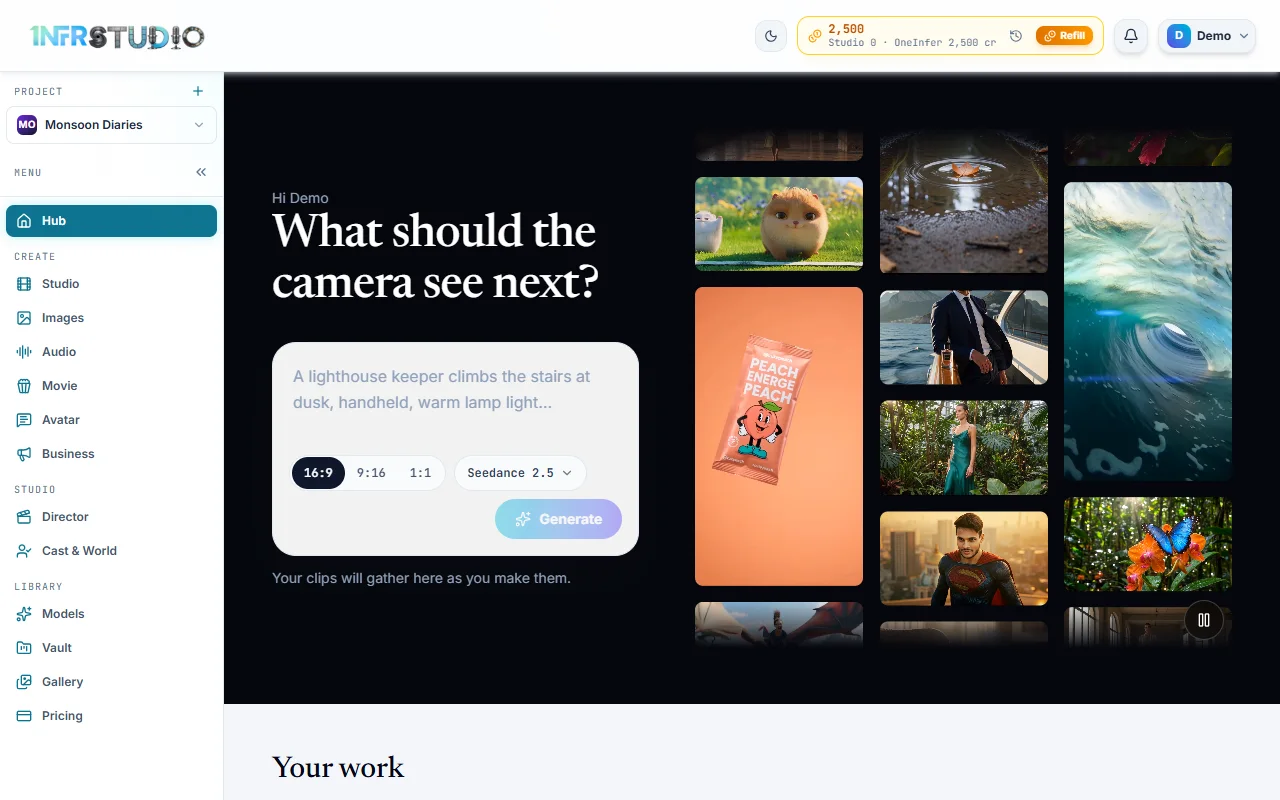
After you sign in you land on the Hub. It says What should the camera see next? and has a prompt box with a Generate button, the shape (16:9, 9:16, 1:1) and the model. Below it, Your work lists your movies and projects, and Start from a template has starting points.
Projects
A project is the folder your work lives in: its clips, its cast of actors, its films and its timeline. The Project box at the top of the left menu shows which one you are in.
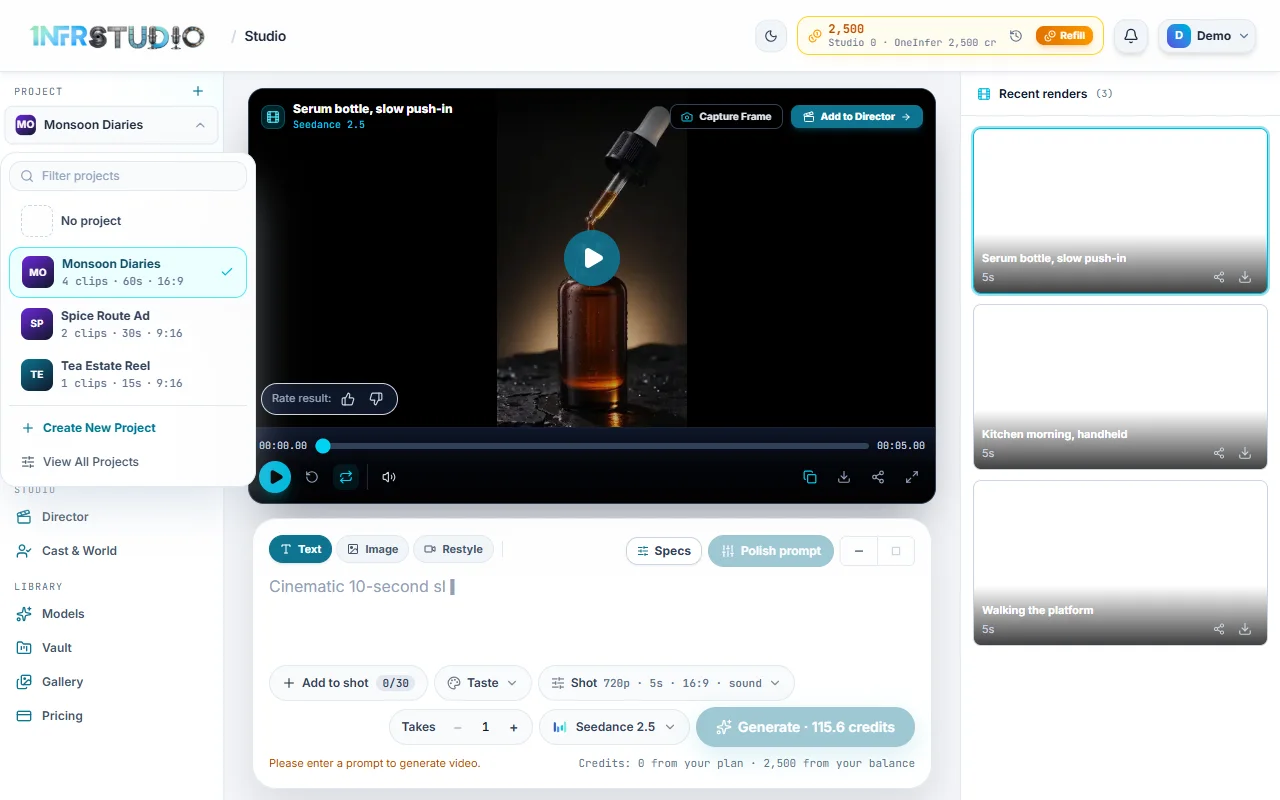
- Press the project name to switch. The list shows your latest projects, each with its clip count, length and shape, and a Filter projects box. No project lets you work outside one; results then stay under No project.
- Press the + (New project) to make one. Give it a Name and an Aspect (16:9, 9:16, 1:1 or 4:5; 16:9 is the default). Studio suggests a name if you leave it empty.
- The first time you make something with no project, Studio asks you to create one ("Create a project to continue"). Nothing is created until you agree.
Each screen shows only the active project's work in its Recent panel on the right, and Studio keeps an unsent prompt for each project separately, so switching projects never mixes things up.
The menu
The menu on the left groups the screens. Press Collapse menu to shrink it to icons; on a phone it opens as a drawer.
| Group | Screen | What it is for |
|---|---|---|
| (top) | Hub | Your starting page and your work. |
| Create | Studio | Single video clips from a sentence. See Studio. |
| Images | Pictures, and editing them. See Images. | |
| Audio | Voices, music and sound effects. | |
| Movie | A story into a movie of shots with a cast, and long films. See Movie and Film. | |
| Avatar | A picture or an actor, plus a script, into a talking video. See Avatar. | |
| Business | Ads from a link, and slides into a narrated video. See Business. | |
| Studio | Director | A timeline to cut and mix your clips. |
| Cast & World | Actors, places and props that stay the same across shots. | |
| Library | Models | Every model, what it is for and what it costs. |
| Vault | Everything you have made or uploaded. | |
| Gallery | Work other people published, and your own submissions. | |
| Pricing | Plans and credit packs. |
Models, Gallery and Pricing can be opened without signing in. Everything else needs an account.
Credits at a glance
Everything Studio makes costs credits, and 100 credits is $1. You see the price on the button before you spend, and each prompt box shows what you have underneath, for example Credits: 0 from your plan · 2,500 from your balance. There are two kinds:
- Plan credits (Studio Credits) come with your plan and are spent first.
- Balance credits (OneInfer Credits) are what you have topped up, and cover anything plan credits do not.
The credit box at the top right shows both, with a history button (Credit history) and Refill to buy more. A price depends on the model, the length and the size, so the docs give examples and Studio shows the exact number each time.
Your first video in 3 minutes
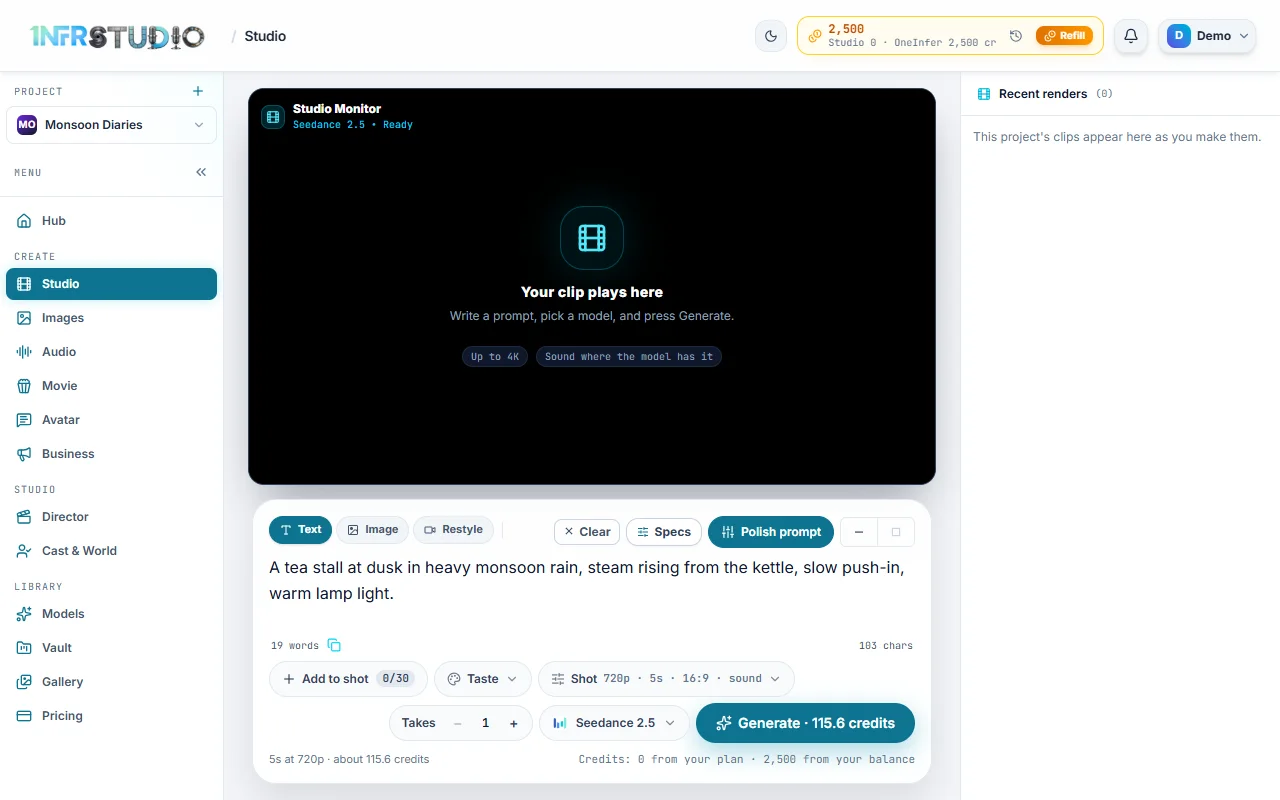
- Open Studio. Press Studio under Create. Make sure the project you want is selected.
- Write the shot. Click the prompt box and describe one scene: who or what, where, the light, and how the camera moves. For example: "A tea stall at dusk in heavy monsoon rain, steam rising from the kettle, slow push-in, warm lamp light." Studio's default model is Seedance 2.5.
- Check the price. Under the box Studio says what you are about to make, for example "5s at 720p · about 116 credits", and the Generate button carries the same number. A clip is 5 seconds, 720p, 16:9, with sound unless you change it in Shot.
- Press Generate. The player shows progress while the model works. Most clips take a few minutes. You can stay or leave: finished clips are saved to your Vault.
- Watch it. The clip plays in the player and appears in Recent renders on the right. MP4 downloads it, Share sends it to other apps, and Add to Director puts it on the timeline.
Next: Studio covers every control on that screen, Movie and Film turns a story into many shots, and Business makes ads from a link.
Questions
Do I need a credit card to start?
No. A new account has 0 credits, and the free 500 credit offer is a claim that the OneInfer team approves. You can buy credits from Refill or Pricing whenever you like.
Where do my clips go?
Into your Vault, tagged with the project you were in. The Recent panel on each screen lists the active project's latest work, and Vault lists everything.
Can I use Studio on a phone?
Yes. The menu becomes a drawer and each screen's Recent panel becomes a strip above the prompt box.
What if I run out of credits halfway?
Studio stops you before you spend: if you do not have enough, it says how many credits you need, and Refill is at the top right.